How to Sign a PDF Online for Free — No Printing Required
Someone sends you a contract to sign. The old way: print it, grab a pen, sign it, scan it back in, email the scan. For a task that takes two seconds with a pen, the overhead is absurd.
You don't need to do that anymore. Whether you need to e-sign a rental agreement, add your signature to a job offer, or electronically sign an NDA before a meeting — with OnePDFs' Sign tool, you can add an electronic signature to any PDF directly in your browser — no software to install, no account to create, and your file never leaves your device.
Sign a PDF in Three Steps
The workflow is straightforward: open your file, create a signature, drop it where it needs to go.
Step 1: Open Your PDF
Open the Fill & Sign tool from the link above and drag your PDF into the upload area, or click to select a file from your device. The file loads entirely in your browser — nothing gets sent to a server. If the form still has blank name, address, or date fields, complete them with the Add Text tool before placing the signature.
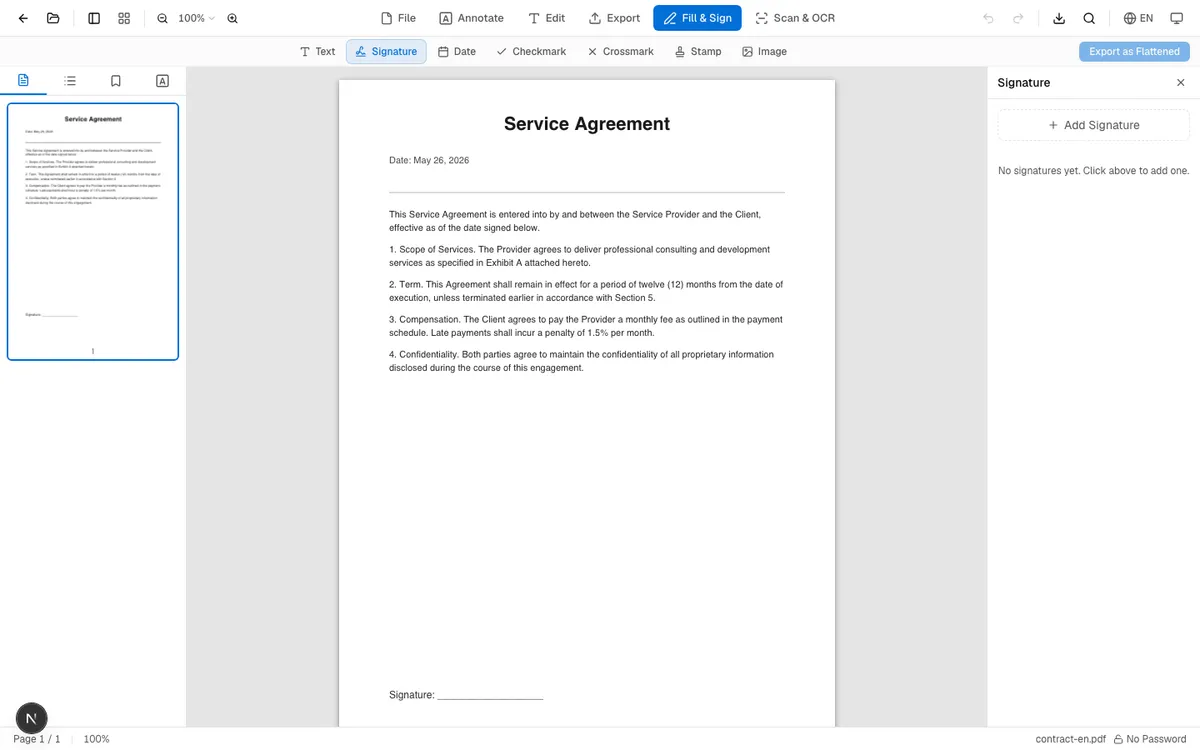
Once loaded, you'll see your PDF on the left and the signing toolbar on the right, with options for signatures, text, dates, and checkmarks.
Step 2: Create Your Signature
Click "Add Signature" in the panel. A modal opens with three creation methods:
- Draw: Use your mouse, trackpad, or touchscreen to write your signature freehand — closest to how you'd sign on paper
- Type: Enter your name and choose from several cursive script styles
- Upload Image: If you have a photo or scan of your signature, upload it directly (the tool automatically removes the white background)
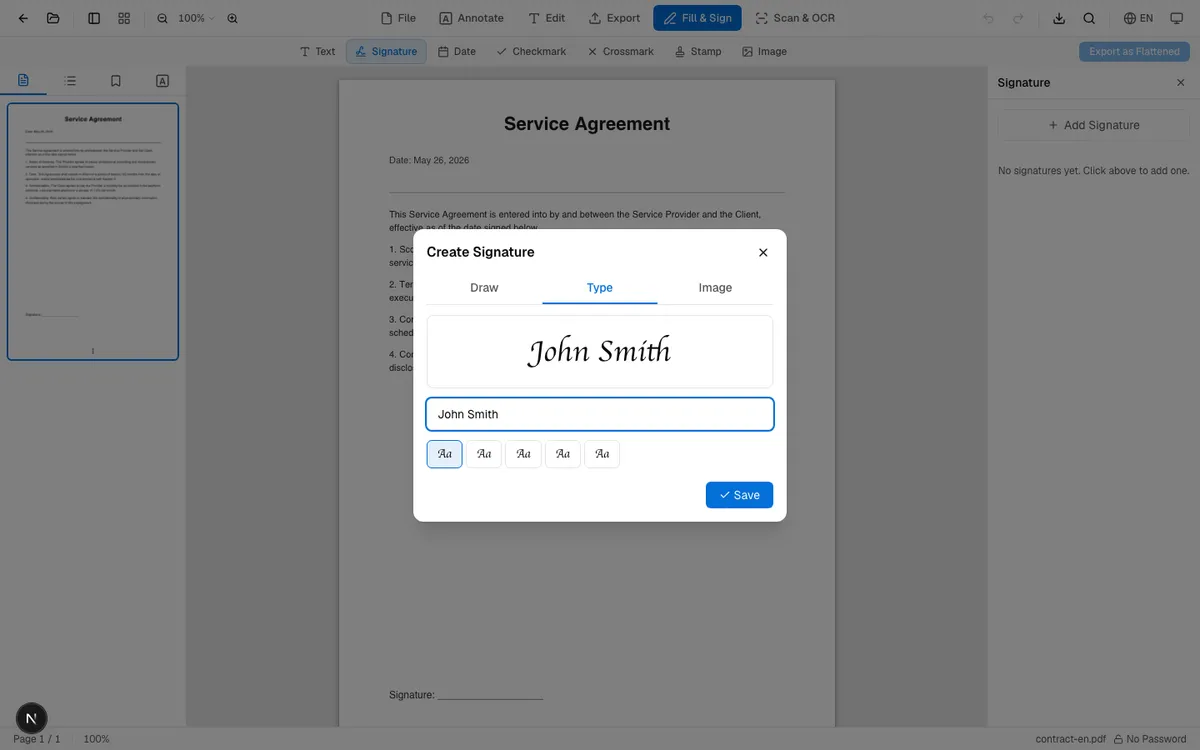
Your signature is saved locally in the browser, so you won't need to recreate it next time.
Step 3: Place and Download
With your signature selected, click anywhere on the PDF page to place it. Drag to reposition, pull the corners to resize, or rotate it to match the signing line angle.
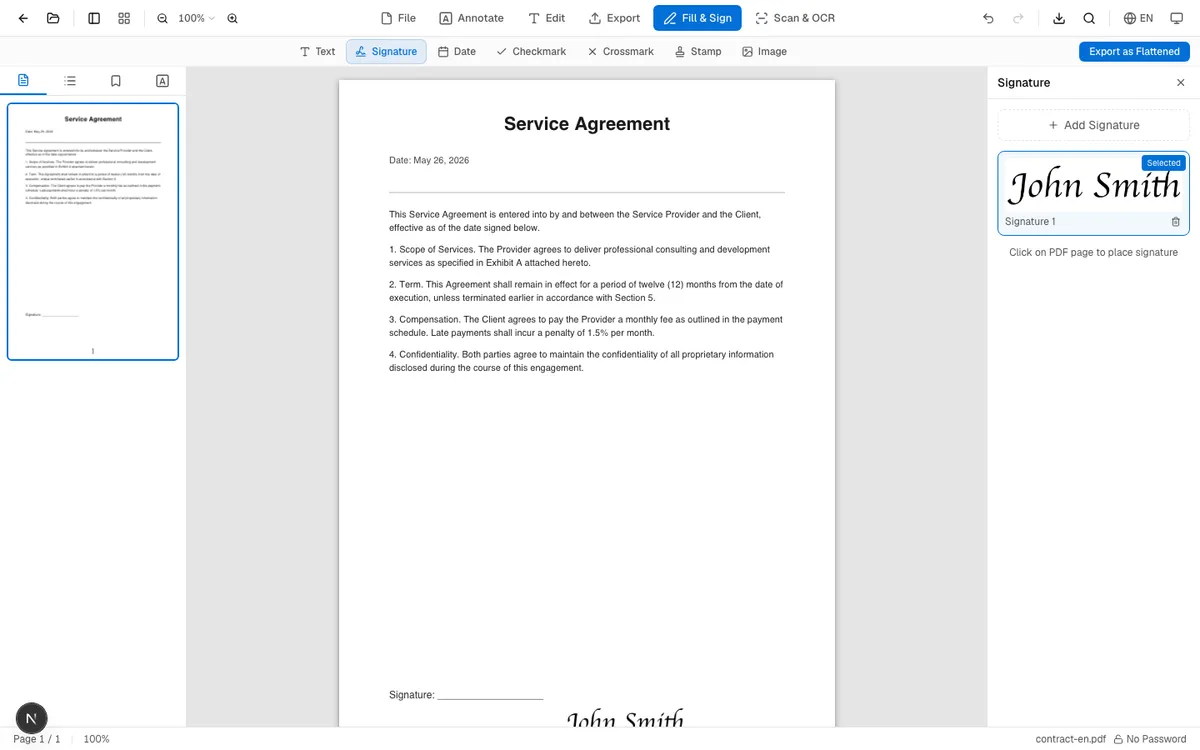
When you're happy with the placement, hit download. You'll get a signed PDF ready to send.
Which Signature Method to Use
Draw works best when you need a natural, handwritten look. For contracts, legal documents, or anything going to a client — draw it. The result is especially good on touchscreen devices like iPads.
Type is for speed. For internal approval forms, consent documents, or informal agreements, type your name and pick a script style. Confirm that the recipient accepts this signature method before relying on it.
Upload makes sense when you already have a standardized signature image. Sign once on white paper, photograph it, and upload. The tool strips the white background automatically. Useful for companies that need a consistent signature appearance across all documents. The Fill & Sign page opens the signature tool first, while text, dates, checks, stamps, and images remain available in the same toolbar.
How the Downloaded Signature Is Stored
OnePDFs draws the signature into the downloaded page content. Standard PDF readers should display that visible result, but the signature is no longer a separate Ink annotation that can be selected, moved, or resized after download.
Before downloading, you can reposition, resize, rotate, or remove the signature in the editor. If you need to change it later, keep the unsigned original and create a new signed copy.
This tool adds a visible electronic-signature appearance. It does not verify the signer's identity, create a cryptographic certificate, or produce a certificate-backed digital signature.
Is My Signature Secure?
Your file stays on your device the entire time. OnePDFs processes everything client-side using JavaScript in the browser — the PDF bytes never leave your computer or phone.
Saved signature presets live in this site's browser localStorage and are not uploaded by the signing workflow. Anyone with access to the same browser profile could potentially access them; clearing the site's browser data removes them.
For contracts, HR paperwork, medical authorization forms, and other sensitive documents, local processing is meaningfully more private than uploading to a third-party cloud service.
FAQ
Are electronic signatures legally valid?
A visible signature image may be accepted in some workflows, but this tool does not verify identity or create a certificate-backed digital signature. Validity depends on the parties' intent, the available evidence, the jurisdiction, and the document type. For regulated or high-value documents, confirm the required signature level with the recipient or a qualified adviser.
Can I still edit the PDF after signing?
Before download, yes: you can move, resize, rotate, or delete it in the editor. The downloaded signature is flattened into the page and is not retained as a separately editable annotation, so keep the original if you may need revisions.
Does this work on mobile?
Yes. The tool is fully responsive. Drawing a signature with your finger on a phone screen works well — it's basically the same motion as signing on a delivery tablet.
Will the signed PDF be much larger?
It depends on the signature method and source image resolution. Drawn signatures are usually small; a large uploaded image can add more. Check the downloaded file size if an upload portal has a limit.
After signing, download the PDF and verify it in the reader you will use. If the recipient accepts password-protected files, you can then protect the finished PDF with a password before sending it.