Password Protect a PDF Online Without Confusing Security Settings
Password protection solves a simple sharing problem: you want to send a PDF, but you do not want anyone who finds the file to open it casually. It is useful for contracts, invoice packets, HR forms, and quotes.
Use Password Protect PDF to add an opening password. One important boundary: a password does not remove sensitive information from the document. If a page contains private numbers, addresses, or pricing that must not be exposed, remove that underlying content with a trusted redaction workflow before protecting the file; a visual black box alone is not enough.
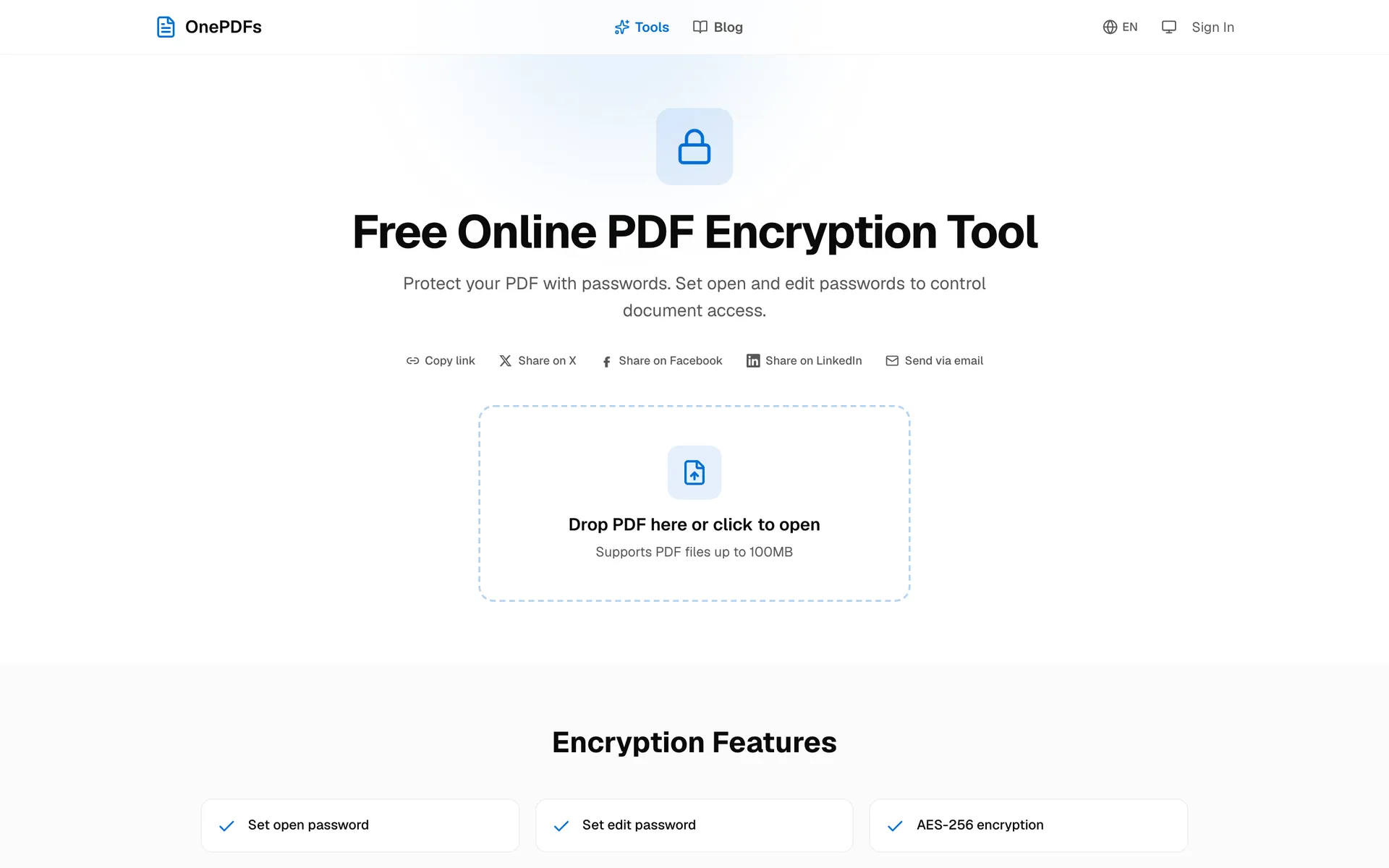
Add the Password
The upload page is shown above. After you choose a PDF, OnePDFs asks for the password and confirmation. This is the password the recipient will need when opening the protected PDF.
Do not send the PDF and password in the same message. A practical workflow is: send the file by email, send the password by phone, internal chat, or password manager. Use a clear filename too, so the recipient knows which password belongs to which PDF.
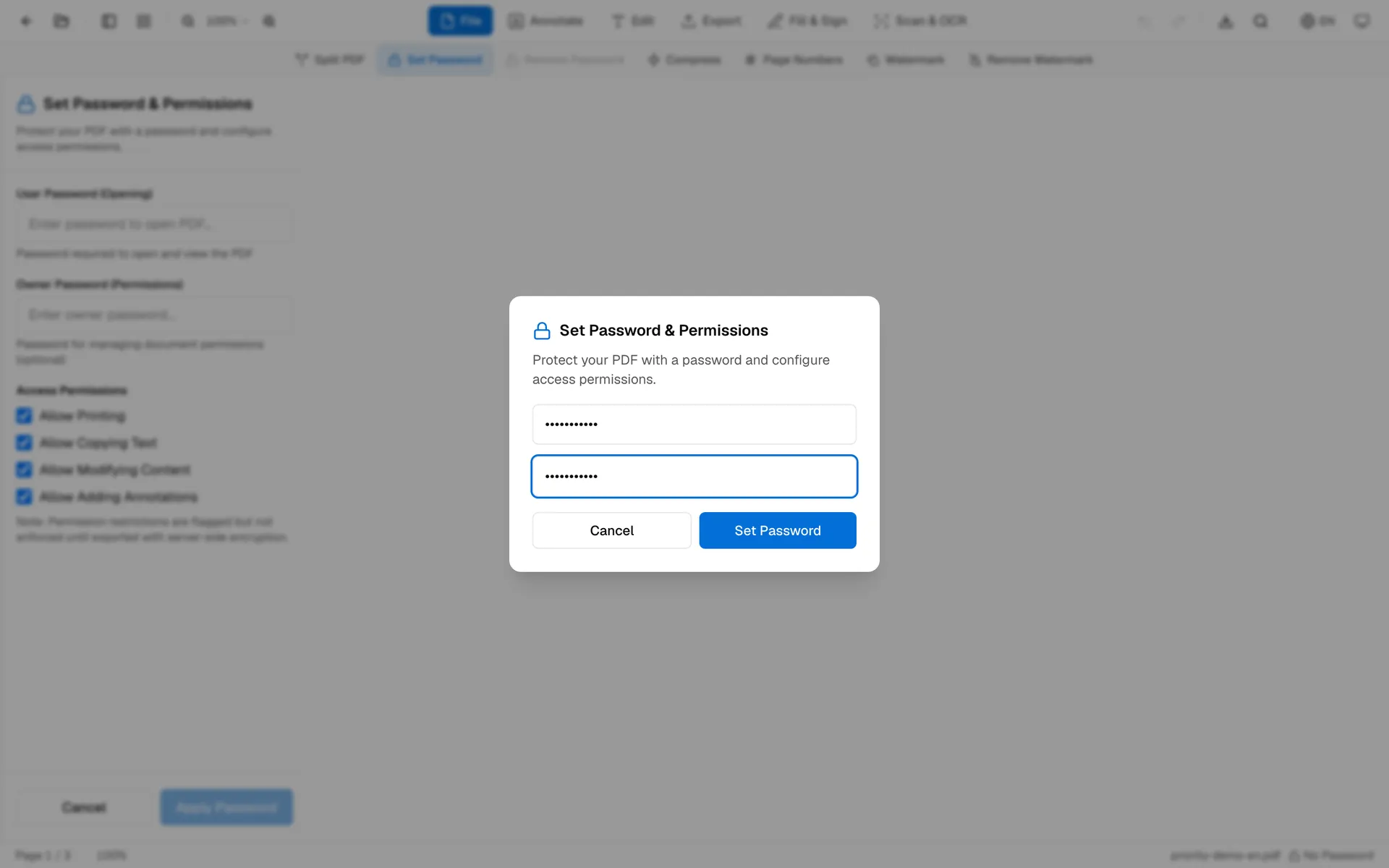
Choose something long and unique. For real collaboration, a long phrase can be easier to confirm than a short string of symbols. For workplace documents, follow your company policy.
What the Result Should Look Like
After downloading, close the preview and open the protected PDF from your downloads folder. The expected result is a password prompt. Enter the password once to confirm the file opens.
If the PDF opens without asking, you probably opened the original file instead of the protected copy. This quick test catches most sharing mistakes.
Permissions and Redaction
Some PDF tools also show options for printing, copying, editing, or annotating. Treat those as reader permissions, not as a guarantee that content cannot be extracted. PDF Redaction can add a visible black cover for review copies, but its current export may retain the underlying text, so it is not an absolute security control. For sensitive files, use a workflow that removes the source content; after export, search and copy around each covered area and reopen the file in another PDF reader before sending.
Keep an unprotected original in a private folder. If you later need to remove the password from a file you own and know the password for, use Remove PDF Password. Before sending, also check that you protected the final version, not an older draft.
FAQ
Can I add a password to a PDF online?
Yes. Upload the PDF, enter a password, and download the protected copy.
Is a password-protected PDF fully secure?
It helps control opening the file, but it is not a complete security system. Share sensitive documents carefully.
What password should I use?
Use a unique password with enough length and store it in a password manager.
After downloading, close the file and reopen it once to confirm the password prompt appears.