Merge PDF Files Online: Keep Order, Separators, and Size Under Control
Use Merge PDF when several PDFs need to become one packet: a contract plus exhibits, a reimbursement form plus receipts, or scanned attachments that should not be sent one by one.
Before uploading, put only the final files in one folder. Remove drafts and duplicate scans. Rename files in the intended order, such as 01-contract, 02-exhibits, 03-receipts. Then the merge step is mostly about confirming the order instead of guessing which file is current.
Check the Merge Queue
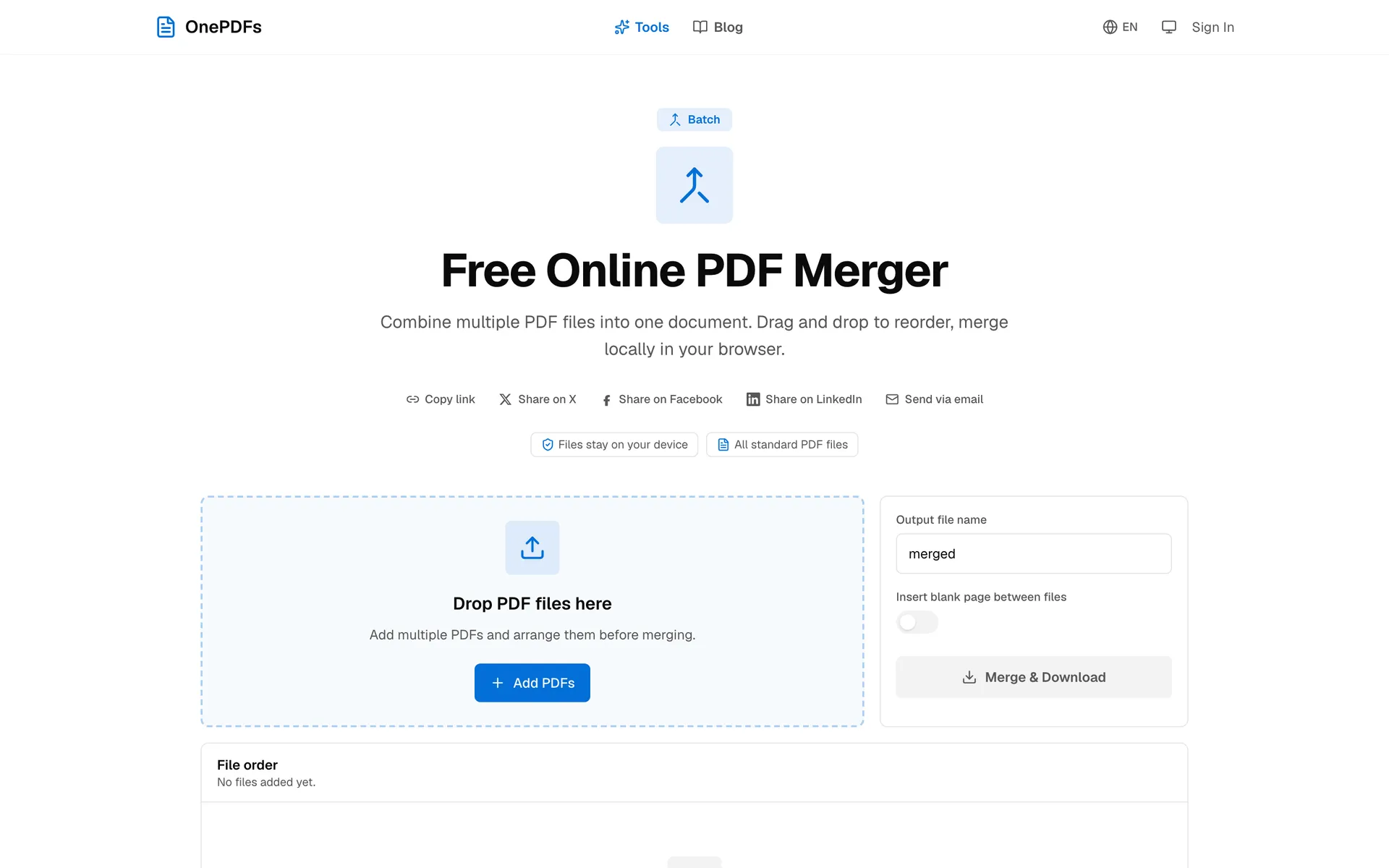
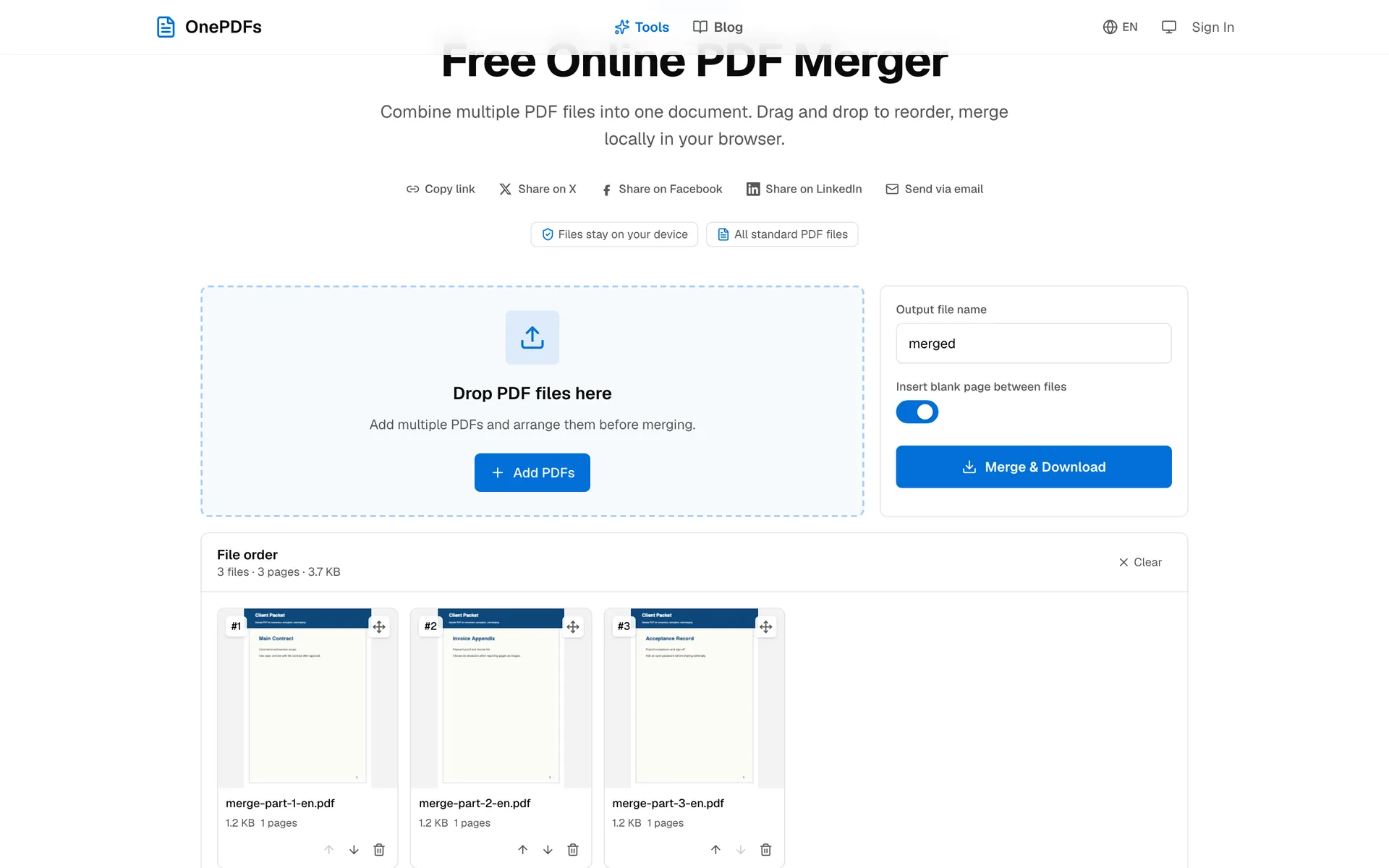
The upload page is shown above. After you add the PDFs, OnePDFs displays a queue. The cards in the queue become the order of the final PDF.
Read the queue from left to right. Put the main document first, supporting material next, and signatures or receipts at the end unless your workflow says otherwise. Do not rely on upload order when the packet matters.
If one source PDF has many pages, open it once before merging. A first-page preview cannot show whether page 7 is an old appendix or a duplicate receipt.
Use Separator Pages Only When They Help
A blank separator page can make sections easier to spot in a long packet. It is useful for a reading packet: contract, attachments, receipts, statements.
Skip separators for official forms, fixed page counts, automated uploads, or any document where an extra blank page could confuse the receiver.
Check the Final PDF
After downloading, open the merged PDF and jump to the start of each section. The result should follow the queue order, with no duplicate pages and no unexpected blank pages. Check the final page too; it is a quick way to catch a missing attachment.
If the final file is too large, compress large scanned PDFs with Compress PDF. If you included pages you do not need, use Split PDF and merge again.
FAQ
Can I merge more than two PDF files?
Yes. Add all files to the queue and arrange them in the final order.
Will merging change the original PDFs?
No. The tool creates a new combined PDF and leaves the original files untouched.
Should I add blank separator pages?
Use them when readers need clear section breaks. Avoid them for official forms with fixed page counts.
After downloading, open the merged PDF and check the first page of each section before sending it.