Extract Pages from a PDF Without Changing the Original File
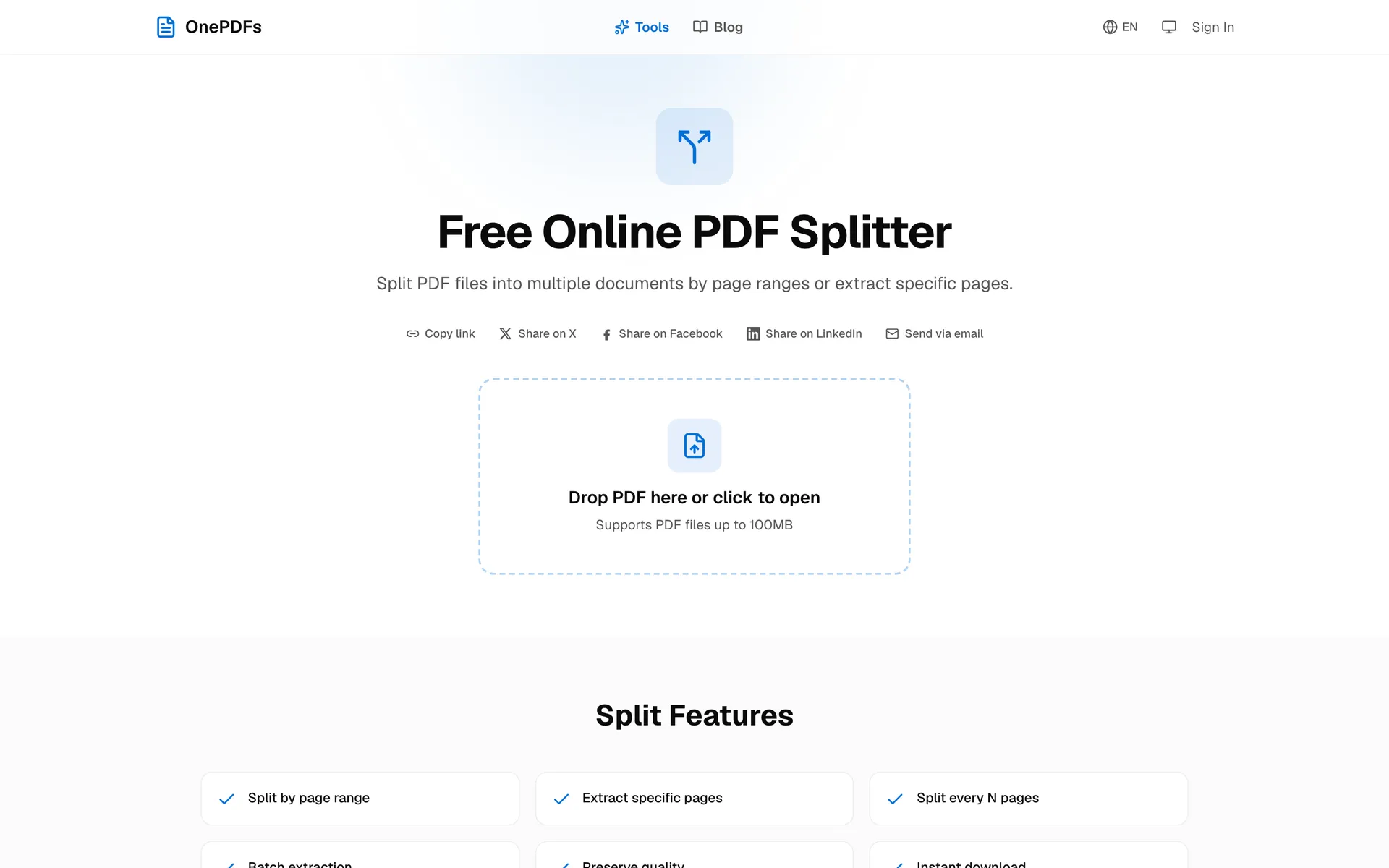
When you need only a few pages from a long PDF, first decide whether you want a new file or want to remove pages from the current one. Extraction is the new-file workflow: save the pages you want and leave the original PDF untouched.
OnePDFs handles that in the browser. You can extract one page, a range such as 2-5, or several ranges from a report, contract packet, textbook, scan, or application form.
Extract Pages vs. Delete Pages
Use extraction when the pages you pick are the pages you want to keep. Use deletion when the selected pages are unwanted pages you want to remove from the current PDF.
For example, if a 30-page packet contains a 4-page invoice section you need to send, extract those 4 pages. If the packet contains one blank scan, use Delete PDF Pages instead.
How to Extract Pages from a PDF
Open Split PDF and upload your file. In the editor, choose range mode and type the pages you want to keep. You can enter a single page, a range, or several groups separated by semicolons.
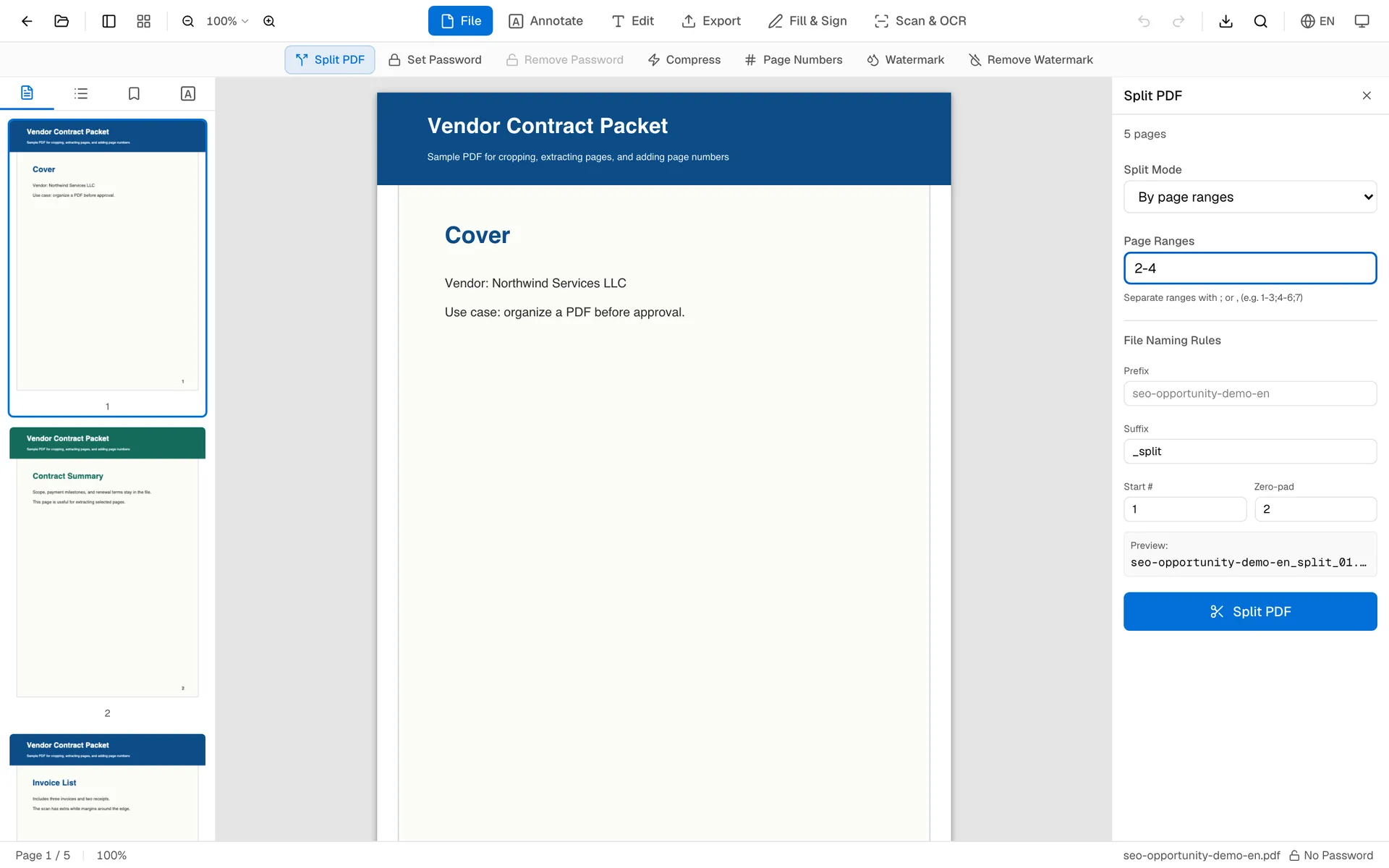
Examples:
1-3saves pages 1 through 3.2;5;8saves three individual pages.1-2;6-8creates separate extracted segments.
Click split, review the output list, then download one extracted PDF or a ZIP containing all segments.
When Range Extraction Helps
Contracts often include cover sheets, exhibits, and signature pages. School packets include many forms, but only one or two may be needed for a specific submission. Scanned documents often bundle receipts, IDs, and notes together. In all of these cases, extraction keeps the useful pages without rewriting the original file.
If you later need to combine extracted pages with another PDF, use Merge PDF. If the extracted file is still large, run it through PDF Compress.
FAQ
Can I extract one page from a PDF?
Yes. Enter that page number as a single range, such as 7, then download the extracted file.
Can I extract several separate page ranges?
Yes. Use semicolons to separate groups, such as 1-2;6-8;12.
Will extraction change the original PDF?
No. OnePDFs creates a new PDF from the selected pages. Your original file remains unchanged on your device.
Is extracting the same as splitting?
Extraction is one kind of splitting. Splitting focuses on how the source PDF is divided; extraction focuses on keeping specific pages.
After downloading, open the new PDF and verify the page count and order before sharing it.