Delete Pages from PDF Online Free: Remove One Page or Several Pages
You do not need a full PDF editor just to remove one bad scan, a blank page, or a duplicate attachment. If you are searching for "delete pages from PDF", "remove pages from PDF", or "PDF page remover", the fastest path is usually a page organizer: open the file, select the pages you do not want, delete them, and save a new copy.
OnePDFs handles that flow in the browser. The PDF stays on your device, and you do not have to create an account before downloading the cleaned file.
When deleting pages is the right tool
Use deletion when the pages are not needed at all: blank scanner output, a repeated invoice, an old draft page, a signature page that belongs to another file, or a confidential appendix you do not want to share.
Use Split PDF instead when you want to keep the removed pages as a separate file. Use PDF Page Organizer when your goal is to clean the current PDF by deleting, rotating, or reordering pages before sending it out.
How to remove pages from a PDF
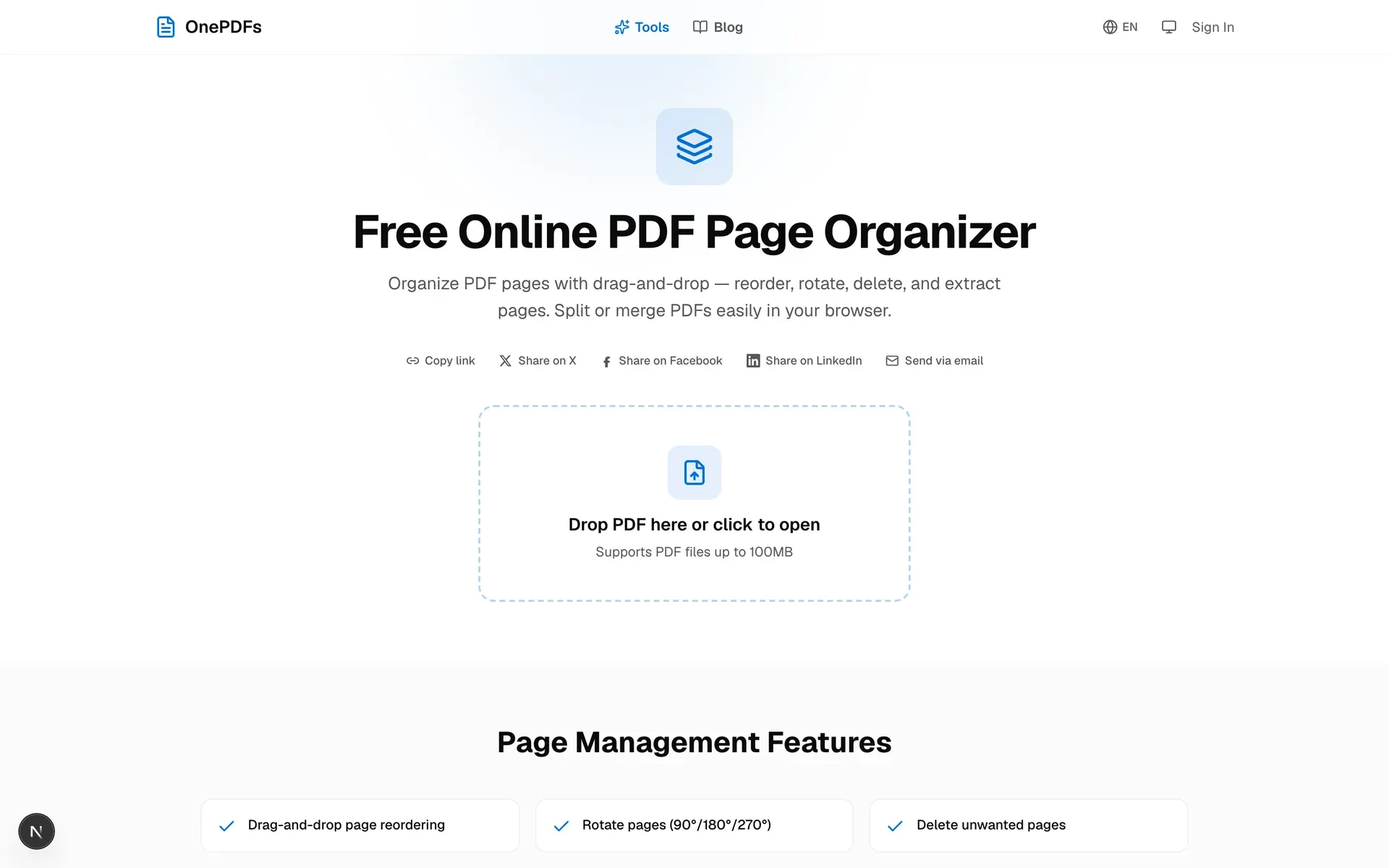
Open the PDF Page Organizer, then drop your PDF into the upload box. The tool opens a page grid where every page is shown as a thumbnail.
Click the page you want to delete. You can select one page or several pages. In the example below, page 3 is a duplicate page, so it is selected before clicking Delete.
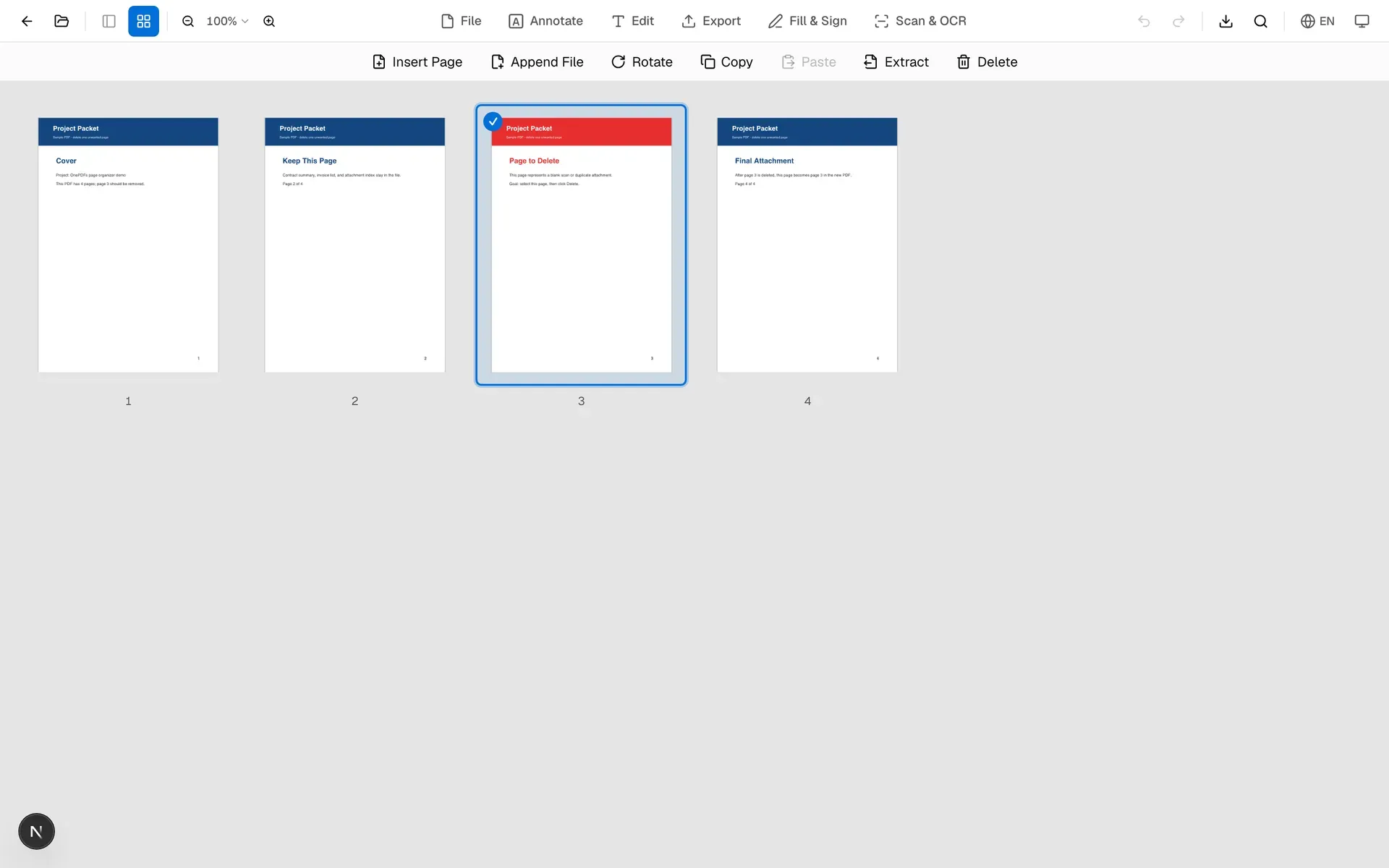
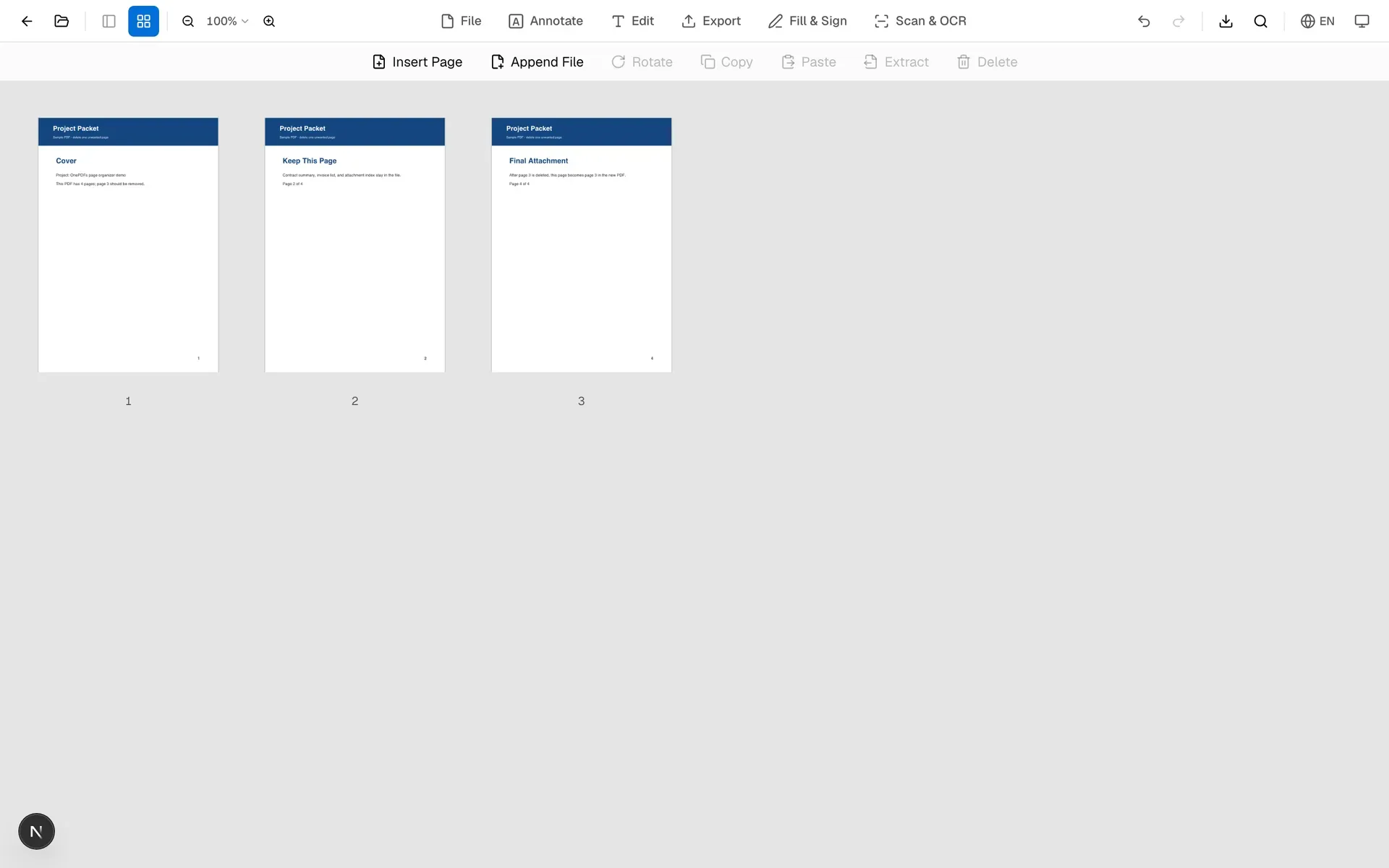
Click Delete in the toolbar. The selected page disappears from the grid, and the remaining pages close the gap automatically. Review the page order before saving or downloading the result.
What happens to the file
Deleting a page creates a new PDF structure without that page. The remaining pages keep their text, images, annotations, and layout. The original file on your computer is not overwritten unless you choose to replace it manually after download.
For private documents, the important detail is where the work happens. Most page operations in OnePDFs run locally in your browser, so contracts, invoices, school forms, and internal documents are not uploaded just to remove a page.
Common situations
Delete one page from a PDF. Select the single unwanted page and click Delete. This is the common fix for a duplicated scan or a page added by mistake.
Remove several pages at once. Select every unwanted thumbnail first, then delete them together. Check the remaining order before saving.
Delete a blank page. Zoom in on the thumbnail if the page looks empty but may contain a faint stamp or signature. If you still need the content elsewhere, split it out instead of deleting it.
Extract pages instead of deleting them. If you want a smaller PDF containing only certain pages, use the Extract option or the Split PDF tool.
FAQ
Can I delete PDF pages for free?
Yes. The page organizer lets you remove pages online without installing desktop software or creating an account.
Will deleting a page change the quality of the other pages?
No. The operation removes selected pages from the PDF. The remaining pages are copied into the new file without being rasterized.
Can I undo a deletion before saving?
Use the editor's undo control while you are still working. If you already downloaded the result, reopen the original PDF and repeat the operation.
Is this different from cropping a PDF?
Yes. Deleting removes whole pages. Cropping keeps the page but trims its visible area. Use PDF Crop when you only need to remove margins or scanner borders.
What if the PDF is password protected?
If the file blocks editing, remove the known password first with PDF Password Remover, then delete the pages.
Need a cleaner file now? Open the PDF Page Organizer, select the unwanted pages, and save the new PDF.