Crop a PDF: Trim Margins Without Cutting Off Content
Cropping a PDF is not the same as deleting a page. If the content is useful but the page has wide white margins, black scanner edges, or a border from a photographed document, a PDF cropper is the right tool. You keep the page; you trim the visible area.
OnePDFs lets you crop PDF pages online in the browser. That is useful for scanned contracts, receipts, lecture notes, forms, and image-heavy PDFs where the page is technically correct but visually messy.
When to Crop a PDF
Crop when you want to remove empty margins, scanner shadows, black edges, or extra space around the actual document. It is also handy when a PDF page was created from a photo and the page includes the table, desk, or background around the paper.
Use PDF Page Organizer if you need to delete, rotate, or reorder entire pages. Use PDF Compress after cropping if the file is still too large for email or an upload portal.
How to Crop PDF Pages
Open the PDF Crop tool, then upload your PDF. The file opens in the editor with the crop panel on the right and a page preview in the main canvas.
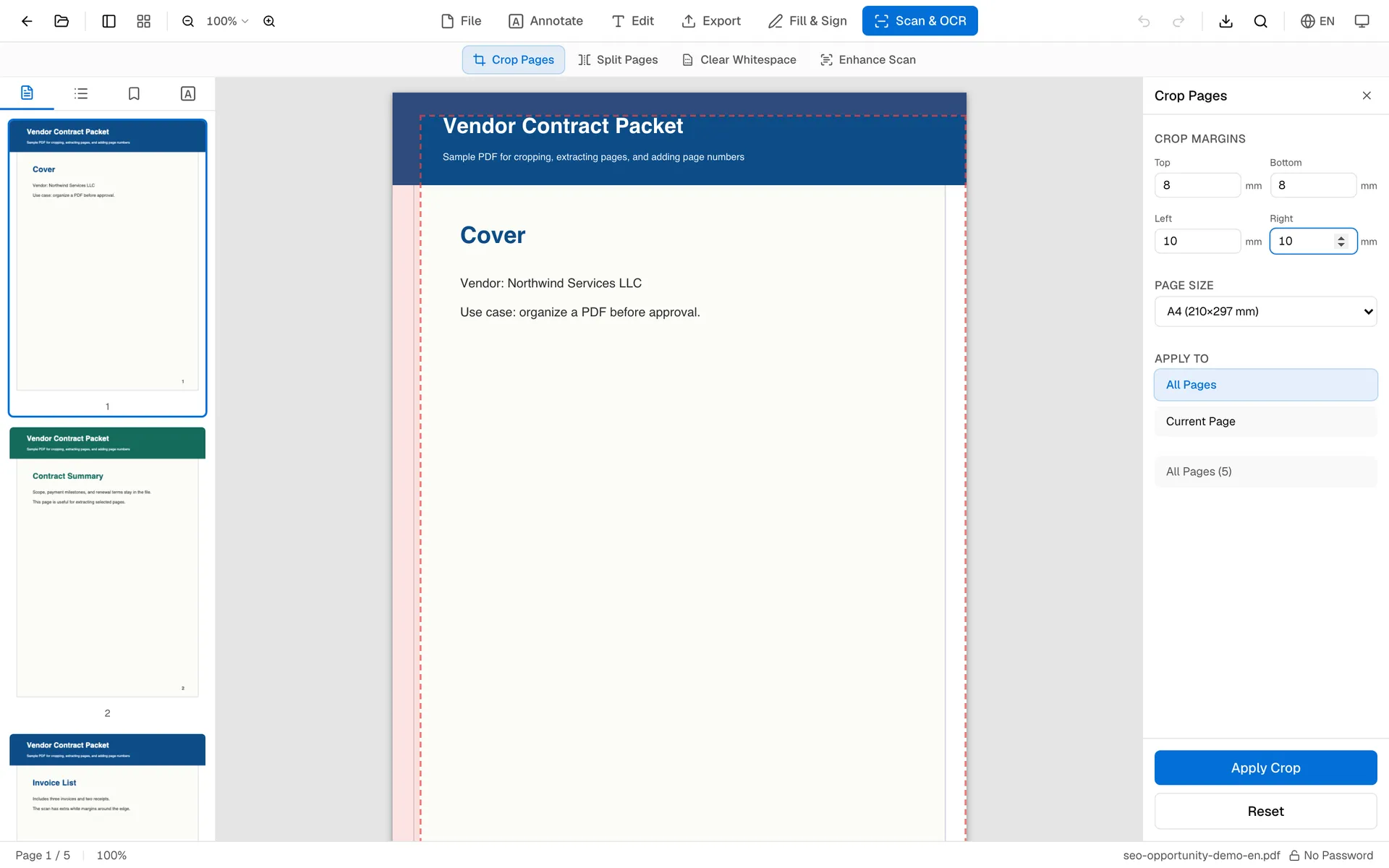
Set the top, bottom, left, and right margins you want to remove. Start with small numbers if the document has text near the edge. Choose whether to apply the crop to the current page or every page, then apply the change and review the result before downloading.
Crop vs. Split vs. Delete
Cropping keeps the same page and trims its visible area. Splitting creates a new PDF from selected pages. Deleting removes whole pages from the file.
If you only need pages 2-5 from a long PDF, use Extract Pages from PDF or Split PDF. If every page has a large blank border, crop the margins instead.
Tips for Clean Results
Keep a little breathing room around signatures, stamps, and handwritten notes. Cropping too tightly can make a page look clipped when printed.
For scans with uneven edges, crop one page first and inspect it at normal zoom. If all pages were scanned the same way, apply the same settings to every page. If pages vary, crop the current page only and repeat as needed.
FAQ
Should I keep a copy before cropping?
Yes, especially for scans with uneven edges. OnePDFs creates a new file, but keeping the original makes it easy to retry with wider margins.
Does cropping reduce PDF quality?
Cropping changes the visible page area. It does not rasterize the page, so text and images are not turned into a low-quality screenshot.
Can I crop only one page?
Yes. Choose the current page option when only one page needs trimming. Use all pages when the same margins apply across the document.
Is cropping the same as removing pages?
No. Cropping trims page edges. Removing pages deletes whole pages. For unwanted blank pages, use Delete PDF Pages.
When unsure, crop the current page first, download a copy, and only then apply the same values to all pages.