How to Compress PDF Without Losing Quality — Free Online Tool
Most people run into the same wall: a perfectly useful PDF that nobody will open because it's 28 MB and the email system caps attachments at 25 MB. Or a form on a government portal that rejects anything over 5 MB, even though your scan came out at 11 MB. File size limits are a real, everyday annoyance — and shrinking a PDF is almost always faster than re-exporting or re-scanning from scratch. Whether you need to make a PDF smaller for email, reduce a scan's file size for a web upload, or optimize a report for mobile viewing, compression gets the job done in seconds.
This guide covers how to compress a PDF without visible quality loss using OnePDFs, what the four compression levels actually do, and when to reach for each one.
Why PDF Files Get So Large
The short version: images. A PDF that's just text with no embedded graphics is usually a few hundred kilobytes. The moment you scan a document, include a photo-rich report, or export a slide deck with background images, the file size jumps.
Specifically:
- Scanned PDFs embed a photograph of each page. Even at moderate resolution, a 20-page scan can exceed 10 MB easily.
- Exported presentations tend to embed high-resolution images that were designed for screen, not for sending by email.
- Design files (brochures, portfolios, product sheets) often carry images at print resolution — 300 DPI and above — which makes the PDF enormous compared to what the screen actually needs.
PDF compression mainly works by resampling and re-encoding images at a lower quality or resolution, and by applying lossless compression to non-image data like fonts and vectors. Text stays crisp because it's not a raster image — it's stored as vector shapes.
How to Compress a PDF with OnePDFs
Open the PDF Compress tool. Drag your PDF into the upload zone, or click to browse your device. The file loads locally — nothing is sent to a server.
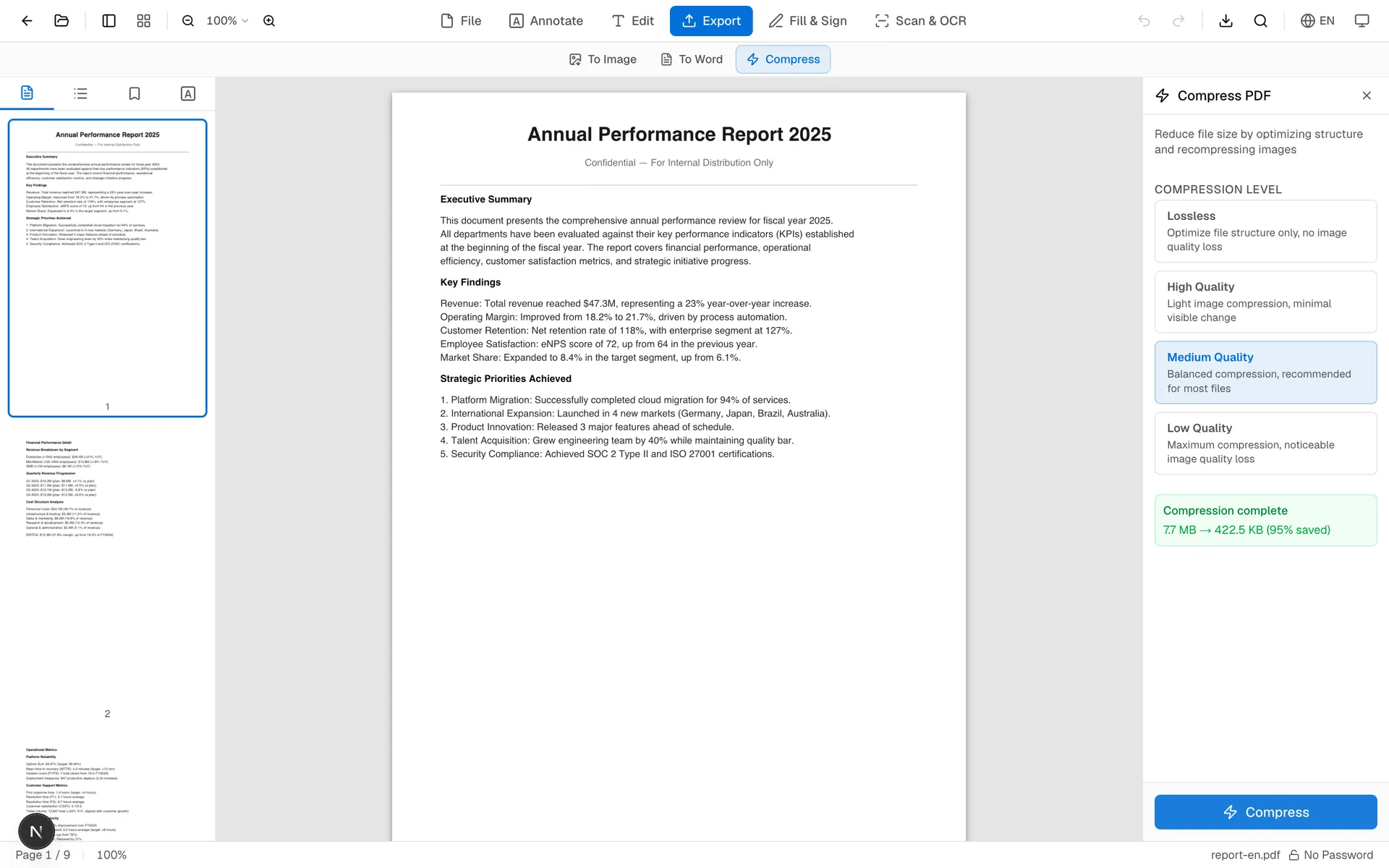
Once the document loads, you'll see a preview alongside a compression level selector. Pick the level that matches your use case, then click Compress PDF. After processing, a download button appears along with a before/after size comparison so you know exactly how much space you saved.
The whole process takes under a minute for most files.
The 4 Compression Levels Explained
OnePDFs offers four levels. Here's what each one does in practice:
| Level | What it does | Best for |
|---|---|---|
| Lossless | Strips metadata and applies non-destructive compression only — no image quality change | Archiving, legal documents, signed contracts |
| High Quality | Lightly resamples images (minimal visible change) | Sharing with clients, internal reports |
| Medium | Noticeably smaller file; very slight image softness at close inspection | Email attachments, web uploads, general sharing |
| Low | Maximum compression; images are clearly lower resolution | File size is the priority, e.g. mobile delivery or portal uploads with strict caps |
For most everyday use — email attachments, uploading a PDF resume, sharing a report — High Quality or Medium is the sweet spot. You lose very little visible quality and typically cut the file to 30–50% of its original size.
Compress a PDF to 100KB, 200KB, 500KB, or 1MB
Some upload forms do not ask for "medium quality"; they ask for a hard limit such as 100KB, 200KB, 500KB, or 1MB. In OnePDFs, switch from compression level to target size, choose one of the presets, or enter a custom KB value.
Target-size compression tries the gentlest settings first, then gradually becomes more aggressive until the file fits. If the PDF is already mostly text, encrypted, or contains a few very large scanned images, it may not be possible to hit an extremely small number without making the pages unreadable. In that case, OnePDFs returns the closest smaller result it can produce and tells you whether the target was reached.
If a PDF still cannot fit the upload limit, extract only the required pages or crop scanner margins before compressing again.
Scanned PDFs vs. Text PDFs: Different Results
Two very different types of PDFs respond differently to compression.
Scanned PDFs are essentially JPEG or PNG images packed into a PDF wrapper. They compress a lot — but the trade-off is visible. Going from a 15 MB scan to 3 MB at Medium quality usually means the text is slightly softer. If the scan was crisp to begin with, Medium quality is usually still perfectly readable. If the original scan was already blurry or low-contrast, Low quality can make it hard to read.
Native PDFs (anything exported from Word, InDesign, Google Docs, or a browser's "Save as PDF") contain real vector text and embedded images. The text will not degrade regardless of compression level. Only the embedded photos or illustrations get resampled. For a presentation with a few photos, even the Medium level often produces a file that looks identical on screen.
A quick rule of thumb: if you can select and copy text in the PDF, it's a native PDF and compression is unlikely to cause legibility issues. If you can't select any text, it's a scan, and go one level more conservative than you think you need.
Compression Levels for Common Use Cases
Job application / resume — High Quality. The file needs to look sharp in a recruiter's PDF viewer. Typically a text-heavy native PDF, so any level above Lossless will work fine.
Contract or signed agreement — Lossless. No reason to touch image quality here. Lossless still reduces file size by removing metadata and applying non-destructive optimization, usually 5–20% smaller.
Scanned invoice or receipt — Medium or High Quality. It just needs to be readable and small enough to attach to an email or upload to expense software.
Product brochure with photography — High Quality. The images matter. You want to preserve the visual impression even if the file is slightly smaller.
Slide deck for Slack / Teams — Medium. People will view it on screen; screen resolution doesn't need print-quality images. Medium is usually a 50–60% size reduction with no visible difference at normal zoom.
Government form upload — Low. These portals often have strict limits (2 MB, 5 MB). Quality doesn't matter as long as the content is legible.
Tips to Get Better Results
Start with the original export. If you exported from Word or Google Docs and the PDF is already large, try re-exporting with that application's own "reduce file size" or "optimize for web" option before compressing. Some applications embed unnecessarily high-resolution images by default.
For scanned documents, try Medium before Low. There's usually a big difference in readability between Medium and Low for scans. Unless you're really pinched on file size, Medium is the better call.
Compress before merging. If you're about to merge multiple PDFs, compress the large ones first. The merger combines file content; it doesn't further compress what's already there.
Check the output on mobile. Text that looks fine on a desktop monitor may be fuzzy on a phone screen at full zoom. Do a quick spot check if you're sending to someone who might review on mobile.
FAQ
Does compressing a PDF damage the original file?
No. OnePDFs produces a new compressed file and lets you download it. Your original PDF stays on your device unchanged. If you're not happy with the result, you can go back and try a different level.
Why is my "compressed" file the same size as the original?
This happens with PDFs that are already well-optimized or whose content is mostly text. Lossless compression can't squeeze text-heavy PDFs very much. Try a higher compression level, or accept that the file is already near its minimum size.
Does it work on password-protected PDFs?
Encrypted PDFs can't be processed until the password protection is removed. If your PDF has a read password, you'll need to unlock it first.
Is the processing really local? The file doesn't go to a server?
Yes — compression runs in your browser using WebAssembly. The PDF bytes never leave your device. This matters if the file contains anything sensitive: contracts, financial statements, medical documents.
What's the largest file it can handle?
In practice, files up to 200 MB work fine in most modern browsers. Very large files (100 MB+) may take a minute or two to process. If your browser tab runs out of memory on an unusually large file, try compressing it in smaller batches by first splitting the PDF.
If you need to shrink a PDF before emailing, uploading, or sharing it, open the OnePDFs PDF Compress tool, drop the file in, pick a compression level, and download the result. No account, no server upload, no waiting.