Add a Watermark to a PDF Online for Free
Before sending a PDF to a client, teammate, or outside vendor, it often makes sense to add a visible mark: "CONFIDENTIAL", "DRAFT", "For review only", or your company logo. A watermark will not replace proper access control, but it makes the document's status and intended use obvious the moment someone opens it.
Search results for "add watermark to PDF" usually fall into a few buckets. Acrobat guides are accurate, but they assume you have desktop software and a subscription. Many online tools work, but their guides stop at "upload, customize, download" and skip the practical part: how opaque should the watermark be, where should it sit, and when should you use a page range? Some services also require uploading the file to their servers, which is uncomfortable for contracts, quotes, reports, and internal documents.
OnePDFs handles PDF watermarking in the browser. You can upload a PDF, preview a text or image watermark directly on the page, tune the settings, then apply and download the result without creating an account.
When a PDF Watermark Helps
A watermark is useful for three everyday jobs.
First, it labels document status. "Draft", "review copy", "sample", and "internal only" are easy to miss when they live only in the filename. Put the label on the page and it stays visible even after the file is renamed or forwarded.
Second, it reduces casual resharing. A watermark reminds recipients that a file is not meant to travel freely. It is not DRM, but it is a practical signal in normal office workflows.
Third, it preserves source information. Text watermarks work well for project names, departments, dates, and recipient names. Image watermarks are better for logos or stamp-style marks. For stronger access control, pair the visible watermark with PDF encryption: require an opening password, then add a visible label.
How to Add a Watermark with OnePDFs
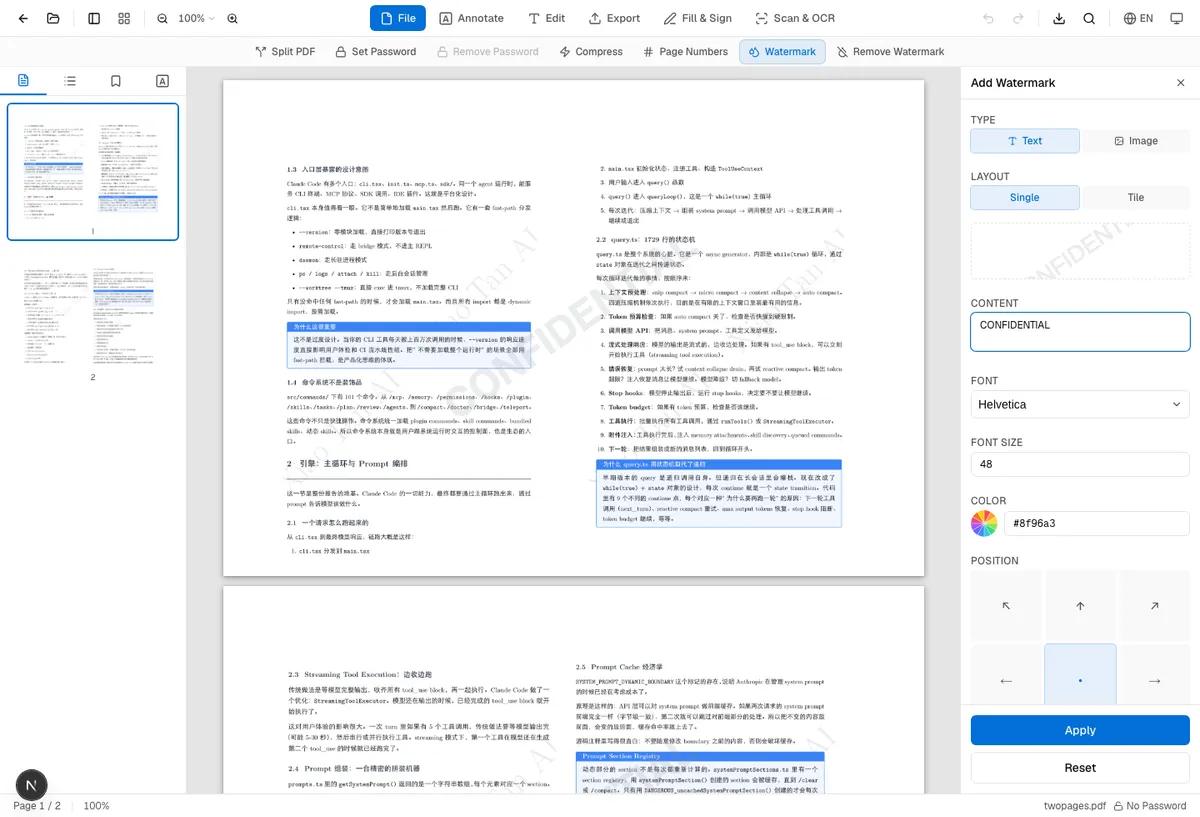
Open the PDF Watermark Tool, then drag your PDF into the upload area or choose it from your device. Once the file loads, the document preview appears on the left and the watermark settings panel appears on the right.
Choose Text or Image
Use a text watermark for labels like "CONFIDENTIAL", "DRAFT", "INTERNAL", or "For review only". After entering the text, you can adjust the font, size, color, opacity, rotation, and placement. Large text with low opacity usually reads better than small text with high opacity.
Use an image watermark for a company logo, project icon, or approval stamp. OnePDFs supports PNG, JPEG, and WebP. A transparent PNG usually gives the cleanest result because it avoids a visible rectangular background.
Set Position and Layout
Single watermark mode is best when you want one clear mark in the center, corner, header, or footer area. OnePDFs gives you a 9-position grid: top left, top center, top right, center left, center, center right, bottom left, bottom center, and bottom right. Reports and contracts often use a centered diagonal mark; handouts and reference files often look better with a quieter bottom-right mark.
Tile mode repeats the watermark across the page in a staggered pattern. It is useful for drafts, samples, previews, and files that might be screenshotted. Keep tiled watermarks lighter than single watermarks, usually around 10% to 20% opacity.
Tune Opacity and Rotation
The most common watermark mistake is making it too loud. The PDF still needs to be readable.
Start with these settings:
| Use case | Example text | Opacity | Rotation |
|---|---|---|---|
| Internal report | CONFIDENTIAL / INTERNAL | 15%-30% | -35° or 45° |
| External preview | SAMPLE / FOR REVIEW | 20%-35% | 45° |
| Draft file | DRAFT | 10%-20% | -30° |
| Logo corner mark | Company logo | 25%-45% | 0° |
If the PDF background is mostly white, use gray, blue-gray, or a lighter version of your brand color. If the page contains charts or dense tables, keep opacity below 40%. Drag the sliders while watching the preview until the mark is visible but not distracting.
Apply Watermark to Selected Pages
Not every page needs the same watermark. Maybe the cover should stay clean, or only appendix pages need "For reference only". Choose a custom page range and enter a pattern like:
2-5, 8, 10-12
That applies the watermark to pages 2 through 5, page 8, and pages 10 through 12. Check the page thumbnails before applying so you do not accidentally stamp a cover, table of contents, or signature page.
Apply and Download
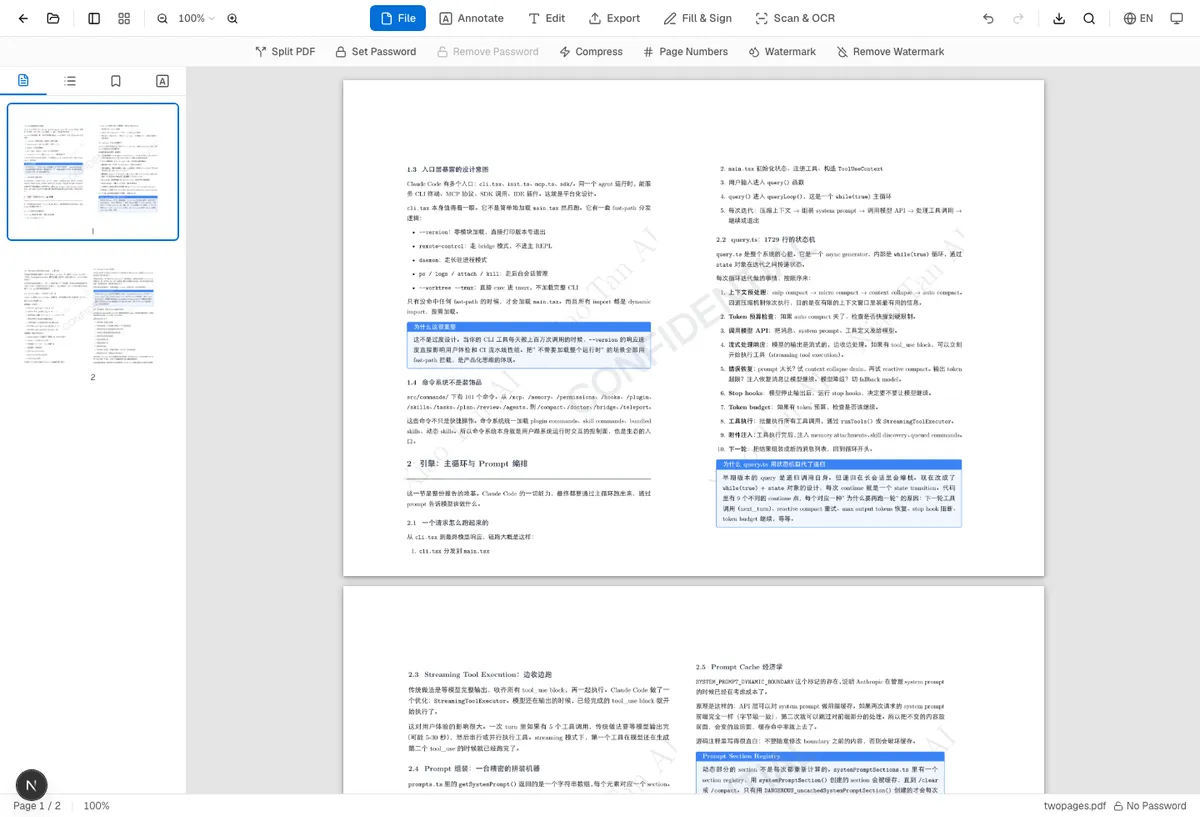
When the preview looks right, click "Apply Watermark". OnePDFs writes the watermark into the selected PDF pages and keeps the original page size, text, images, and layout intact. Download the finished file and reopen it once to confirm the watermark is part of the PDF, not just a browser preview.
How to Pick Good Watermark Settings
For dense text documents, lighter is better. Contracts, manuals, and academic papers are read line by line, so a 10% to 25% centered diagonal watermark is usually enough.
For chart-heavy reports, avoid covering key data. A centered mark can sit directly on top of bars or trend lines. Try a corner position or lower the opacity to around 15%.
For external samples, tile mode is useful. Quotes, previews, and design drafts can be screenshotted, so repeated marks make the file's status harder to crop away. Keep the tiled mark subtle so the page is still readable.
For logos, start small. A saturated logo in the middle of the page can feel like an ad. Begin around 20% to 30% of the page width and place it near a corner or footer.
Text Watermark vs Image Watermark
Text watermarks are best for office labels. They are small, sharp, easy to edit, and perfect for "Confidential", "Draft", "Internal Use Only", or a recipient name.
Image watermarks are best for brand identity. Use them for logos, seals, icons, and stamp-like artwork. The source image matters: transparent PNGs with clean edges work much better than screenshots with white backgrounds.
If your goal is document status, use text. If your goal is branding or ownership, use an image.
What to Check Before Sharing
Before downloading, inspect at least three pages: the cover, the densest text page, and the page with the most charts or tables. If the watermark stays readable without covering important content on those pages, the rest of the document is usually fine.
After downloading, reopen the PDF in a normal viewer. Make sure the watermark appears consistently and the layout did not shift. If you add the wrong watermark and still have the original file, start over from the original. If only the watermarked file remains, the PDF Watermark Remover may help, but removal quality depends on how the watermark was written into the PDF.
FAQ
Will adding a watermark change the PDF layout?
No. OnePDFs adds watermark content on top of the existing pages. It does not convert the PDF to Word or rebuild the layout.
Does the file upload to a server?
Watermarking runs in your browser. The PDF is loaded, previewed, and written on your device, which is useful for files that should not leave your computer.
Can I add a logo watermark?
Yes. Use image watermark mode and upload a PNG, JPEG, or WebP file. Transparent PNG is usually the best choice for logos.
Does a watermark stop people from copying the PDF?
No. A watermark is a visible label, not a permission system. To limit who can open the file, add an opening password. OnePDFs currently keeps printing, copying, and editing permissions enabled after the file is opened.
Need to mark a file as confidential, draft, or sample? Open the OnePDFs PDF Watermark Tool, upload the file, preview the settings, and download the watermarked PDF.