Remove PDF Watermark Online for Free — Review Before Removing
A repeated “DRAFT,” “SAMPLE,” logo, or URL can make an otherwise useful PDF hard to read. If the watermark exists as a separate PDF text, image, layer, annotation, or marked-content object, OnePDFs can detect it and remove the selected object from the relevant pages.
The important word is selected. Detection produces candidates, not a guarantee. A repeated header, footer, or legitimate logo can look like a watermark, so the tool starts with nothing selected and requires both a manual choice and an explicit confirmation before it changes the PDF.
This guide covers the actual workflow, the seven detection stages, unsupported scanned PDFs, encrypted files, and the checks to make before replacing your original document. Only remove watermarks from files you own or are authorized to modify.
Which PDF watermarks can be detected?
PDF pages are stored as drawing instructions. A visible watermark may therefore be represented in several different ways.
Repeated text overlays
Words such as “CONFIDENTIAL,” “SAMPLE,” or “DRAFT” are often drawn diagonally with low opacity. Other files use fully opaque but very light gray text. Repetition, rotation, opacity, and color together make these objects useful detection signals.
Repeated image or form XObjects
A company logo, website mark, or decorative pattern may be embedded once and referenced across many pages. Repetition alone is not proof: a legitimate header logo can use the same structure, which is why you must review the candidate list.
OCG layers, annotations, and marked content
Some applications use an Optional Content Group, a PDF Watermark annotation, or tagged BMC/BDC–EMC content. These structures can be separate from the main page content and are additional signals for the detector.
What cannot be separated structurally
If every page is one scanned image and the watermark is baked into those pixels, there is no independent PDF object to remove. The current OnePDFs watermark remover marks image-only scanned PDFs as unsupported. Adding an OCR text layer does not automatically separate a watermark already burned into the image.
How to remove a watermark with OnePDFs
The removal work is performed in the browser. The web page still loads normal application assets, but the PDF itself is not sent to a processing server by this workflow.
1. Open the tool and add the PDF
Open the PDF Watermark Remover, then drag in the PDF or choose it from your device. Uploading opens the editor; it does not automatically detect or remove anything.
If the file is encrypted, stop here. First use the known password to remove the PDF password, download an unencrypted copy, and open that copy in the watermark remover. Entering a password in a viewer only unlocks viewing; the remover does not decrypt the original encrypted bytes itself.
2. Click Detect Watermarks
In the watermark-removal panel, click Detect Watermarks. The tool analyzes the PDF structure and then lists possible watermark objects.
3. Review the candidate list
Each candidate shows its type, confidence, and affected pages. This list is not a preview of the cleaned result. Confidence is a ranking signal, not proof, and legitimate repeated elements may appear. Compare the listed pages with the original PDF and leave any uncertain candidate unselected.
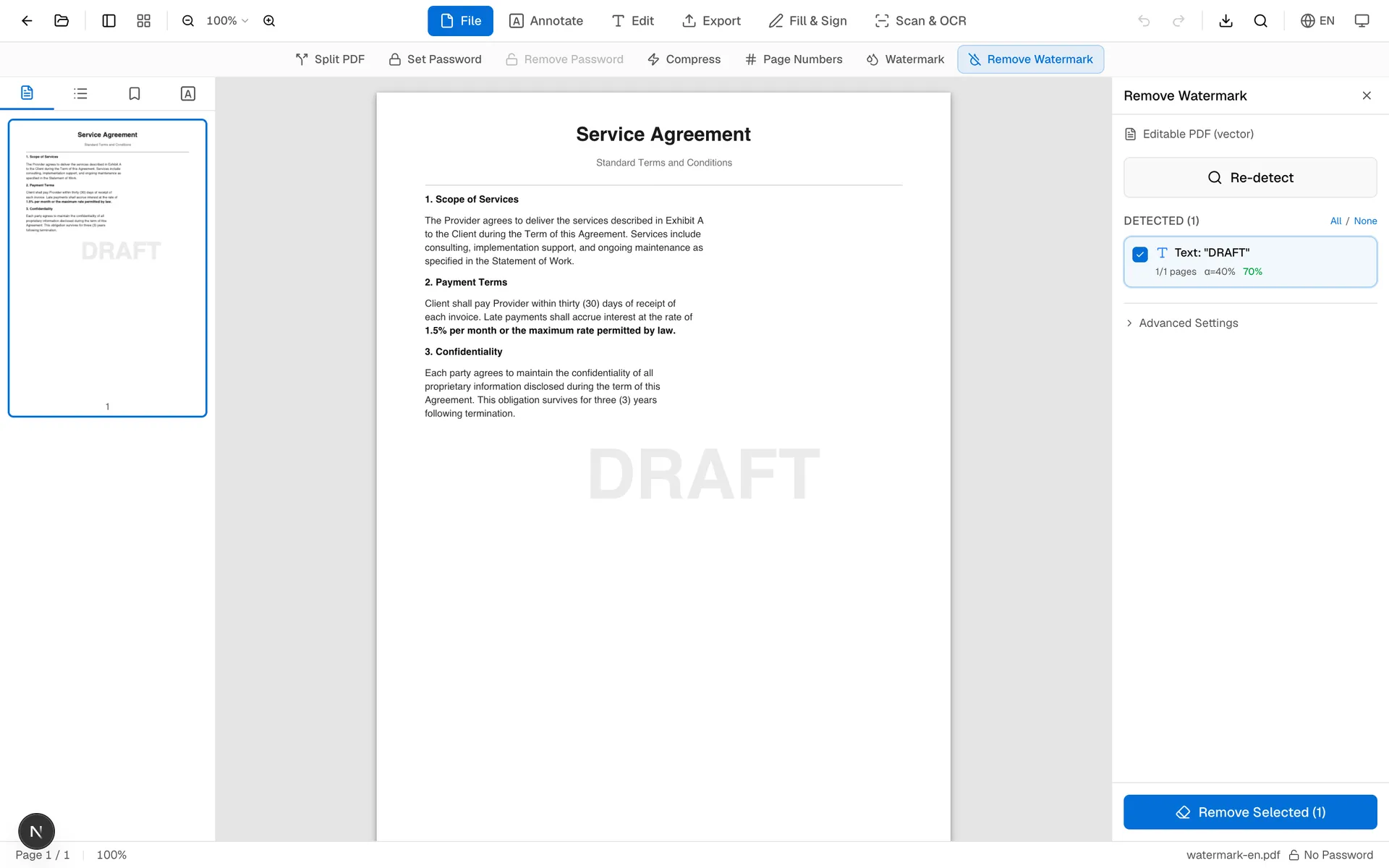
4. Select candidates and confirm explicitly
Candidates are unselected by default. Check only the items you have identified as watermarks. After reviewing the selection, tick the confirmation box that acknowledges the chosen objects will be removed. Changing the selection clears that confirmation, so it must match the final candidate set.
5. Apply the removal to the editor
Click the button to remove the confirmed candidates. The operation updates the PDF currently open in the editor; it does not automatically download a file. If the tool reports warnings, read them before continuing.
6. Download and verify separately
Use the editor’s download control to save a new PDF. Keep the source file, open the download in another PDF reader, and inspect every page where a candidate appeared. Check text, images, links, bookmarks, headers, and footers, and compare uncertain areas with the original. Replace the original only after that review.
For several files, use the batch PDF watermark remover. It also requires candidate review and confirmation for each file rather than deleting detected objects automatically.
The seven detection stages
The detection logic can be described in seven stages. In the code, the fourth stage is named “Pass 3B,” but it tests a distinct watermark pattern.
- Cross-page XObject correlation. Finds image and form objects repeated across a large share of pages.
- Opacity analysis. Checks whether repeated objects are drawn with reduced opacity.
- Low-opacity text detection. Looks for repeated, often rotated text drawn with transparency.
- Light-colored opaque text detection (Pass 3B). Finds pale text that looks like a watermark without using transparency.
- OCG layer detection. Examines Optional Content Groups and watermark-like layer metadata.
- Watermark annotation detection. Finds annotations whose subtype is
Watermark. - Marked-content detection. Analyzes BMC/BDC–EMC blocks for watermark-tagged drawing operations.
The stages complement one another, but they still produce candidates. They cannot determine the author’s intent, and they cannot guarantee that every candidate is safe to remove.
Limits and failure cases
Image-only scanned PDFs are unsupported. A rasterized watermark is part of the page pixels. Use an authorized image-editing or document-recreation workflow instead; OCR alone does not remove it.
Encrypted PDFs must be unlocked first. Use a password you are authorized to use, export an unencrypted copy, and process that copy. Files with an unknown password are not supported.
Watermarks can share a drawing block with real content. Removing the block may affect nearby text or graphics. Do not select a candidate you cannot identify, and always compare the downloaded result with the source.
Unusual vector artwork may not be detected cleanly. A mark built from many paths can be difficult to distinguish from the design itself. A missing candidate is safer than deleting legitimate content automatically.
Performance depends on the file and device. Page count, object complexity, file size, and available memory all matter. Use a desktop browser for large documents and keep an untouched source copy.
Privacy and responsible use
Watermark detection and removal run against the PDF in the browser. This avoids uploading the document to a separate processing service, but it is not a blanket legal or compliance certification. Your browser still makes normal network requests to load the OnePDFs application, and your organization may impose its own rules for handling documents.
Remove only watermarks you are entitled to remove. A purchased or accessible PDF is not automatically licensed for watermark removal or redistribution. When rights are unclear, ask the document owner.
Frequently asked questions
Does the candidate list show the final result?
No. It identifies possible watermark objects and the pages on which they occur. Apply the confirmed selection, download a separate copy, and then verify that copy page by page.
Are candidates selected automatically?
No. They start unselected. You must choose the candidates, explicitly confirm the final selection, and then apply the removal.
Will all other PDF content remain unchanged?
The remover targets the selected objects and attempts to preserve everything else, but complete preservation cannot be guaranteed for every PDF structure. Keep the original and verify the exported copy.
Can it remove watermarks from all pages of one PDF?
Yes, when the confirmed candidate occurs on those pages. “All pages” means the relevant pages inside one file. Use the batch tool for multiple PDF files, reviewing each file separately.
Can it process a scanned or password-protected PDF?
Image-only scans are unsupported. For an encrypted PDF, first unlock it with a known, authorized password and export an unencrypted copy.
Ready to review a repeated watermark? Open the PDF Watermark Remover, detect the candidates manually, confirm only the correct objects, and verify the downloaded copy before using it.