How to Auto-Redact PDFs with AI — Free, Private, No Upload
You have a PDF with a dozen names, two emails, three phone numbers, and a home address. The legal team needs all of that blacked out before tomorrow. Doing it by hand means clicking through every page, finding each instance, drawing rectangles, hoping you didn't miss one.
A regex catches the obvious patterns — emails, structured phone numbers — but stumbles on names (is "Apple" a fruit or a CEO?) and international phone formats. So you end up reviewing the whole document anyway.
This is what AI is good at. The Smart Redact tool on OnePDFs runs OpenAI's open-source privacy-filter model directly in your browser. It scans every page, finds personal information across 8 categories, and lets you review before applying. Your PDF never leaves your device — there's no server upload, no account, no fee.
What "AI Redaction" Actually Means Here
Most "AI PDF redactors" online either upload your file (privacy nightmare for the documents you care about hiding) or run a simple regex behind a marketing site. Smart Redact does neither. OpenAI's 1.5-billion-parameter NER (Named Entity Recognition) model runs detection locally in your browser. When the roughly 900 MB model is not already cached, the browser downloads it; while that cache remains available, later visits can reuse it. Browsers and users can clear cached data, so another download may be required.
What it detects, in one pass:
| Category | Examples |
|---|---|
| Person | Names like "Sarah Chen" or "Tim Apple" — distinguishes person-context from same-spelled words |
| Address | Street addresses, ZIP codes, city + country lines |
Standard, plus obfuscated forms (john [at] example.com) | |
| Phone | International formats, area codes, extension numbers |
| URL | http/https/ftp links and bare domains |
| Date | Birth dates, document dates in any common format |
| Account number | Credit card chunks, bank routing, IBAN-shaped strings |
| Secret | API keys, passwords, tokens accidentally pasted into docs |
That's the part regex can't do. Context matters: the model knows "Apple" in "Apple Inc. announced earnings" is a company, but "Apple" in "I emailed Tim Apple last week" is a person.
Three Steps to Redact a PDF
The workflow is intentionally simple — you upload, you scan, you apply.
Step 1: Open the Smart Redact Tool
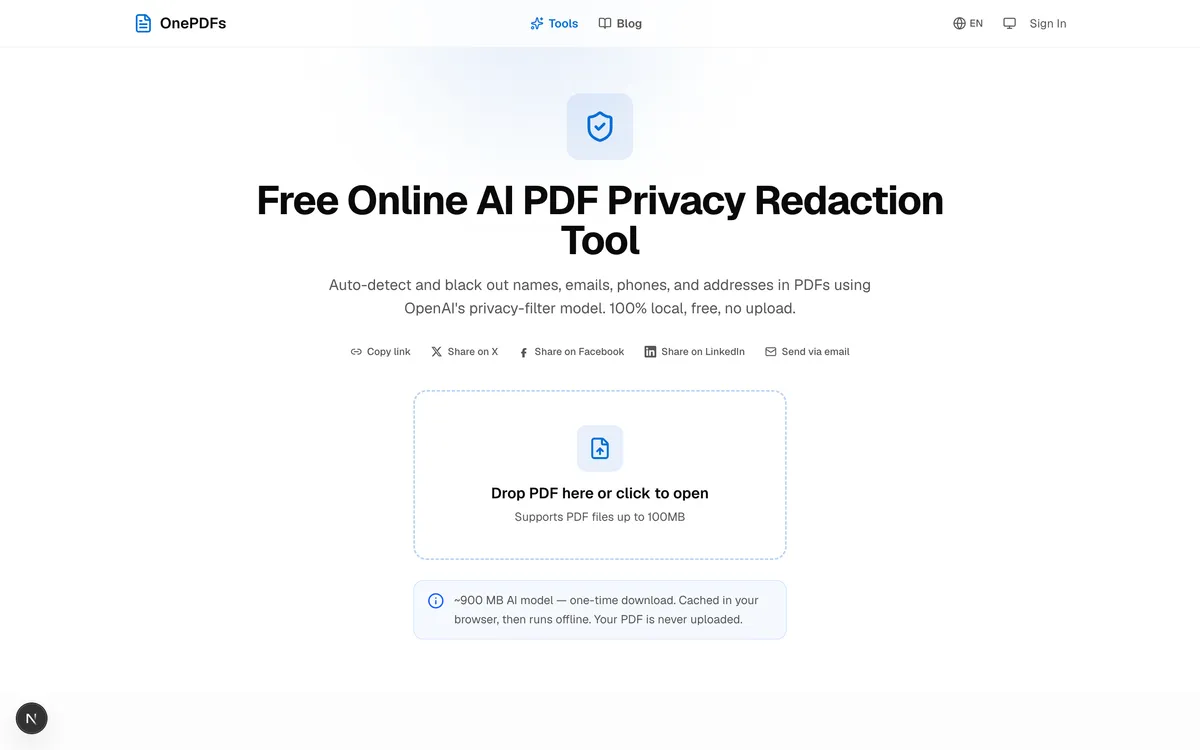
Visit /tools/pdf-smart-redact and drop your PDF onto the upload area. The file stays in your browser; nothing gets sent anywhere. The editor opens with the Smart Redact subtool already active.
Step 2: Run the AI Scan
Click Scan. If the privacy-filter model is missing from browser cache, about 900 MB must be downloaded. An available Cache Storage copy can be reused, but the browser may evict it or the user may clear it. Loading and detection time depend on the connection, browser, device, available acceleration, page count, and document complexity; there is no fixed completion time. Detection runs locally, using WebGPU when available with a browser-compatible fallback.
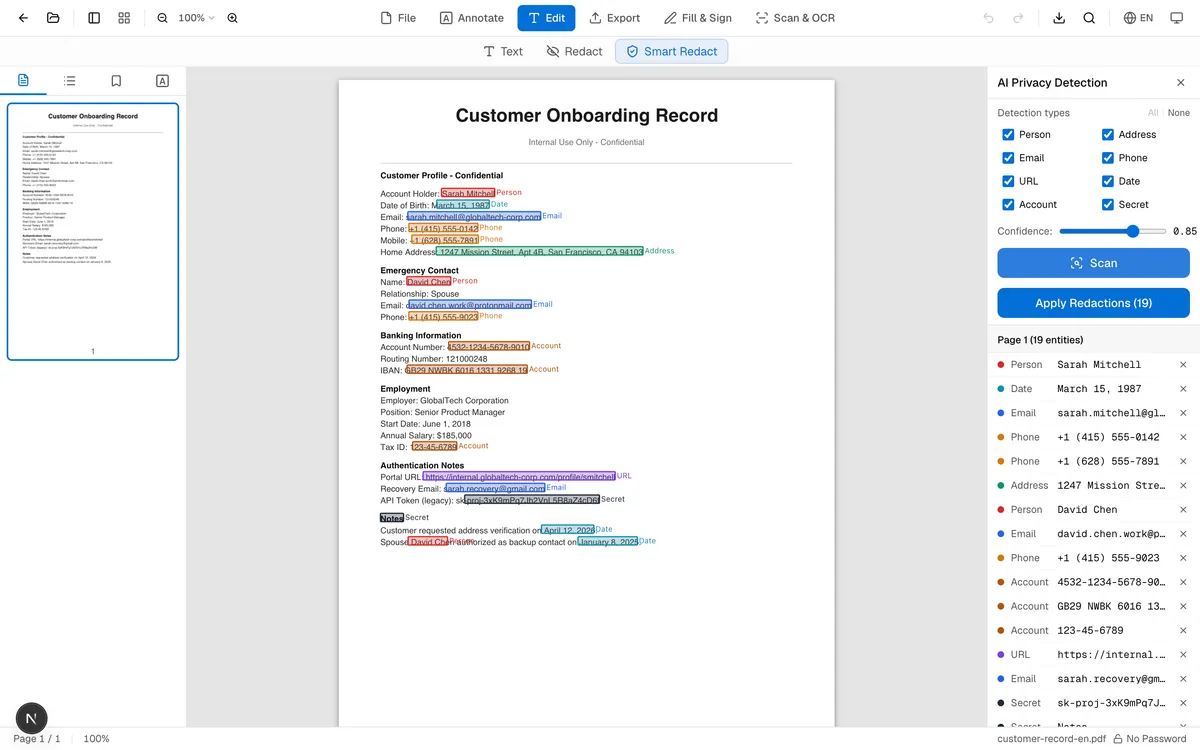
While scanning, the panel shows progress per page. Detected items appear in a list grouped by page, with each one highlighted directly on the PDF in a category-specific color.
Step 3: Review and Apply
Now the human-in-the-loop part. The panel shows three controls at the top:
- Detection types — eight checkboxes, one per PII category. Uncheck the ones you don't want to redact. Maybe you're keeping dates visible because they're public record. Toggle them off and the matching highlights disappear from the PDF immediately.
- Confidence threshold — a slider from 0.50 to 0.99. Higher means fewer false positives but might miss edge cases; lower catches more but flags some borderline calls. Default 0.85 is the sweet spot for most documents.
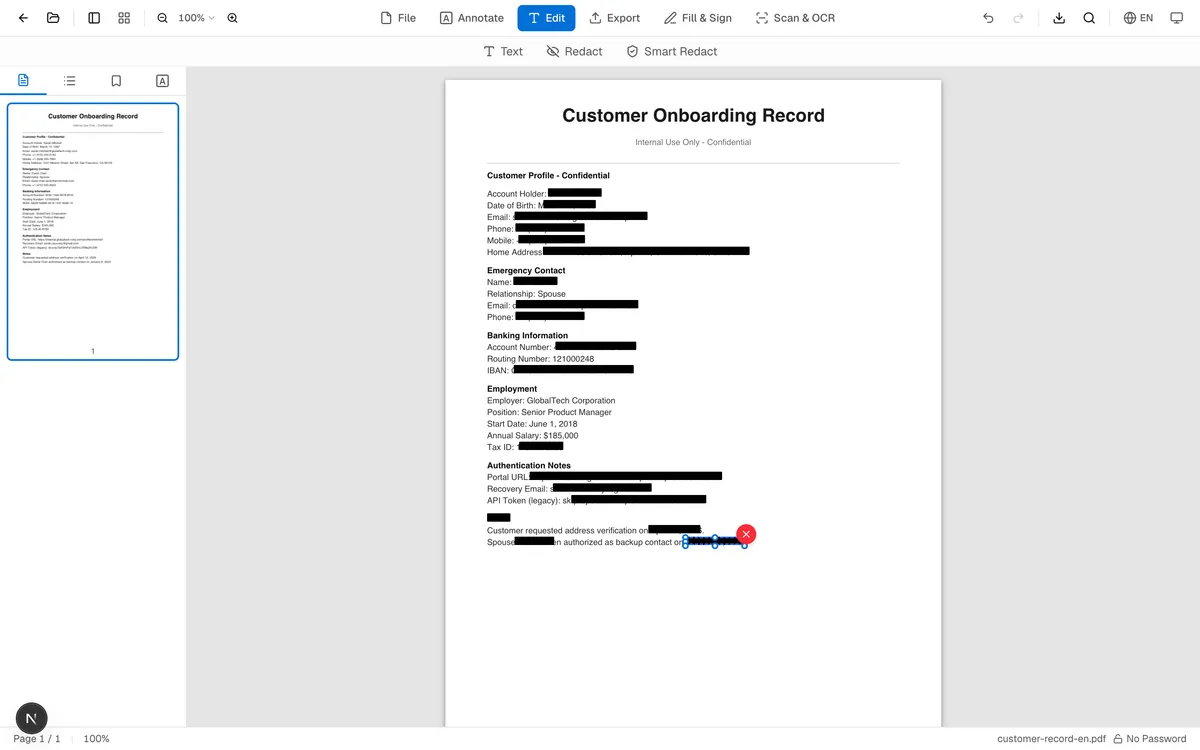
- Apply Redactions — the final action. Click it and every confirmed entity gets an opaque black rectangular overlay. In the current implementation, export draws that rectangle over the matching area; it does not delete the underlying text object or image pixels. Treat the result as visual masking, not guaranteed secure redaction.
If you spot a false positive in the list, click the × next to it to remove that single entry. If a whole category is over-flagging, uncheck the category. Before you click Apply, the tool only previews candidates; Apply adds the selected overlays but does not erase the source content beneath them.
Why Not Just Use the Manual Redaction Tool?
OnePDFs already has PDF Blackout and PDF Erase for manual redaction. They're great when you know exactly what to hide and where. Smart Redact wins when:
- The document is long and you want to be sure you didn't miss anything
- You don't know in advance which names or emails appear
- You want to redact one category (say, all phone numbers) without touching the rest
- You're processing similar documents repeatedly and want consistent rules
For review copies and low-risk sharing, a useful workflow is AI scan first, then a human pass with the manual tool. For genuinely sensitive material, do not rely on these visual overlays alone: use a redaction workflow that removes the underlying content, then verify the exported file. Smart Redact is a force multiplier, not a replacement for judgment or secure sanitization.
The Privacy Story
The whole point of a tool like this is that it shouldn't compromise the data you're trying to protect. So it's worth being explicit about what happens where:
- Your PDF: stays in your browser. Read into memory, processed by pdf.js for text extraction, never sent over the network.
- The model: roughly 900 MB of weights are downloaded from HuggingFace's CDN when they are not cached, then stored in browser Cache Storage while available. Cache eviction or manual clearing can require another download. No model files are sent back; inference runs locally rather than on the OnePDFs server.
- Detection results: list of entities with positions and confidence scores, all in browser memory only.
- The visually masked output: built locally with pdf-lib and offered as a download. The tool code does not intentionally write detected text or entities to logs, but the black rectangles do not by themselves prove that the underlying PDF content was removed.
If you're working in a corporate environment with strict data handling policies, this matters. The AI doesn't see your document; it just runs in the same JavaScript runtime that's already loaded the page.
When AI Misses Things
Be honest about limits. The privacy-filter model is good but not perfect:
- Scanned PDFs without text layer: the model needs extractable text. Image-only PDFs (most scans) won't work — the Smart Redact button is disabled for those. First use a trusted OCR workflow that creates a searchable text layer, then verify that the recognized text is accurate.
- Names in unusual contexts: a name buried inside a code snippet, or a name in a non-English script, may be missed. Lower the confidence threshold to catch more, then review.
- Numbers that look like account numbers but aren't: invoice IDs, SKU codes, etc. False positives. Either uncheck "Account" if your document has lots of those, or remove individual entries.
A good practice for ordinary review copies: run a scan with default settings, scroll through with the highlights visible, and only then click Apply. After export, open the result in a second PDF reader, search for each masked value, and try selecting and copying text around every covered area. Those checks can expose a failed or viewer-dependent mask, but passing them still does not make a visual overlay suitable as the only protection for highly sensitive information.
FAQ
How much does it cost?
The tool has no subscription or per-page charge. Be aware that the browser may need to download roughly 900 MB of model data whenever no usable cached copy remains; normal internet-provider data costs can still apply.
Does it work offline?
Inference runs locally once the model is available. A cached model can avoid another model download, but offline availability also depends on whether the page and required application assets remain available in your browser, so do not assume every later session will work without a connection.
Can it handle non-English PDFs?
The privacy-filter model was trained primarily on English data, but real-world coverage extends well beyond. In testing on Chinese documents we saw it identify Chinese person names, city-level addresses ("北京市海淀区中关村大街…"), +86 phone numbers, emails, URLs, and Chinese ID/account-number formats. Chinese dates and bank-branch names sometimes slip through — easy to clean up by hand. For Latin-script European languages (Spanish, German, French), person and address detection is more reliable than for CJK.
What happens to the original text after I apply redactions?
With the current implementation, the original text is not deleted. Apply adds a rectangular mask, and export draws that mask or writes it as a square annotation while the underlying text can remain in the PDF. Depending on the export path and reader, search, copy, or text extraction may still reveal it. Use this tool for visual masking and review, not as the sole protection for sensitive data; use a sanitizing redaction workflow and verify the exported file in another reader before sharing.
Can I batch-process many PDFs at once?
Not yet through the UI. The model is loaded per browser tab, but the scan workflow runs one document at a time. If you have a stable use case for batch processing, the cached model and our Compress batch infrastructure could be wired together — let us know.
Is the privacy-filter model open source?
Yes. It's on HuggingFace under a permissive license. The Transformers.js port is what we use for in-browser inference.
Try It
Open Smart Redact, drop in a PDF that has personal information you'd want hidden, and review the candidates the AI finds. If the model is not cached, the browser may need to download roughly 900 MB; an available cache can be reused. Total time varies with the connection, browser, device, number of pages, and document complexity.
For visual masking where AI isn't the right fit — a targeted black cover, rectangular censorship, or a manual white cover — keep PDF Blackout and PDF Erase in your back pocket. They are complementary visual tools, not substitutes for content-removing redaction.
The whole flow runs in your browser. No upload, no signup, no cost. That's the whole pitch.