How to Strikethrough Text in a PDF Online for Free
To cross out text in a PDF, open the free PDF strikethrough tool, add your file, drag across the words you want to mark, and download the annotated copy. The original words remain readable under the line, which makes strikethrough useful for proofreading, contract review, and showing a proposed deletion without silently rewriting the document.
The whole job normally takes less than a minute. Before you begin, make sure you actually want a revision mark: strikethrough does not erase the underlying text and must not be used to hide passwords, account numbers, or other private information.
Check the PDF before adding strikethrough
Try selecting a sentence in your normal PDF viewer. If individual words can be selected, the file has a text layer and the strikethrough tool can align the line with that text. This is the common case for documents exported from Word, Google Docs, Pages, or a desktop publishing application.
If dragging only selects the entire page as an image, the PDF is probably a scan. A text-markup annotation has no characters to attach to in that situation. Run OCR first, or use a visual line from the PDF drawing and annotation tools when a simple review mark is enough. Check the result carefully because a drawn line is not linked to a word and can shift if the page is later cropped.
Keep an untouched copy of the source file. It gives you a clean comparison if you cross out the wrong clause or later need to produce a final version without review marks.
How to cross out PDF text online
1. Open the dedicated strikethrough page
Go to the PDF Strikethrough Tool. You do not need to create an account or install an extension. Drop the PDF into the upload area, or click it and choose the file from your device.
After the document loads, OnePDFs opens the annotation workspace with the strikethrough tool active. Wait until the page text is sharp and selectable before dragging; on a large file, the visible canvas can appear a moment before the text layer is ready.
2. Drag across the exact words to be marked
Start near the first character and drag to the end of the phrase. The tool follows the text runs instead of placing an arbitrary line across the page. For a multi-line selection, move steadily from the first line into the next rather than drawing through the blank margin.
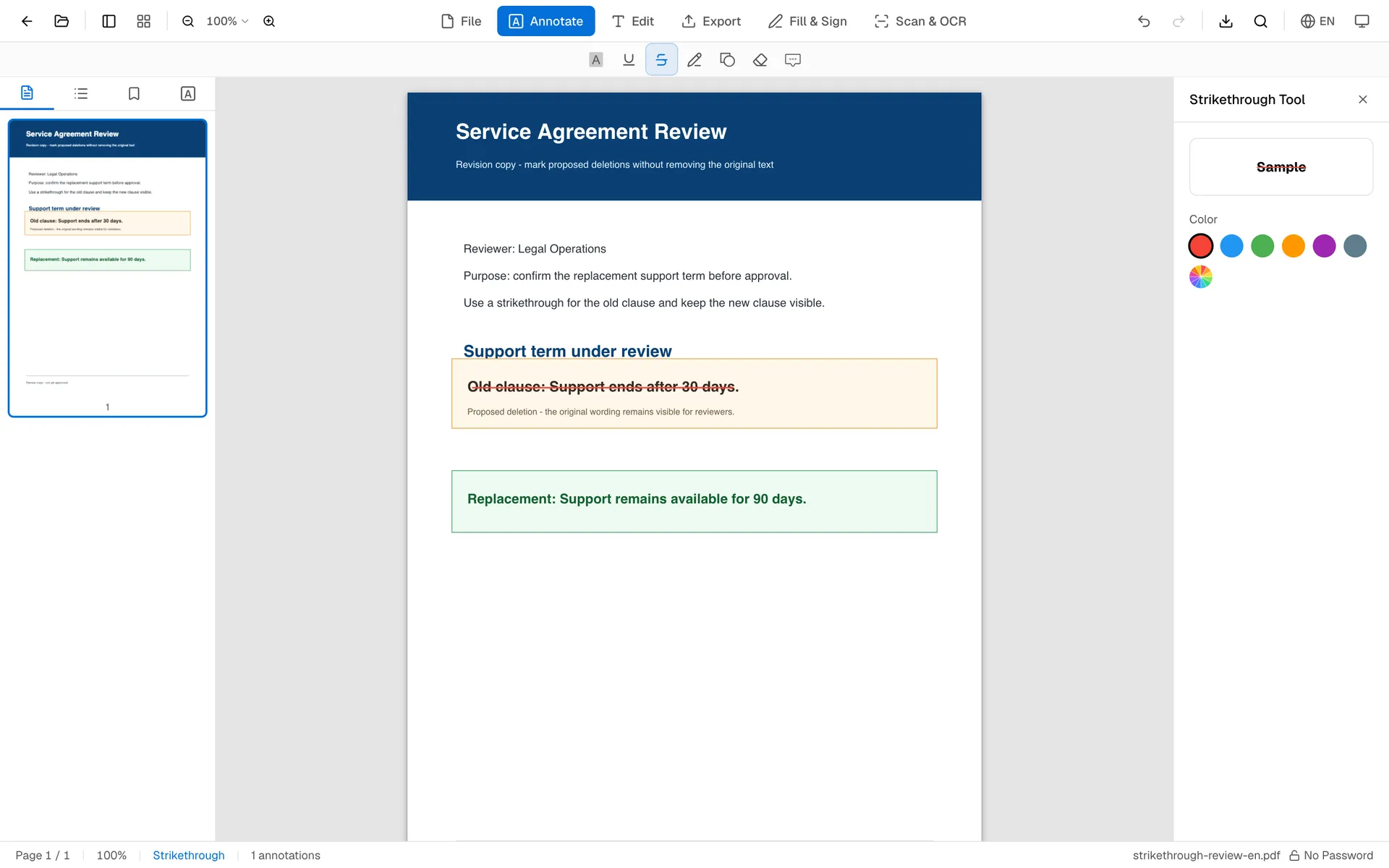
Zoom in before selecting small footnotes, table cells, or densely set contract clauses. A shorter drag is usually more accurate than trying to cross out an entire paragraph in one gesture. You can repeat the action for neighboring lines.
3. Pick a color and correct mistakes
Red is the clearest conventional choice for a proposed deletion, but the side panel also offers blue, green, orange, purple, and blue-grey. Choose the color before making the next mark. To recolor an existing strikethrough, select that annotation and then choose the new color.
If the line covers the wrong words, undo the last action or select the annotation and remove it. Do not stack several lines over the same text to fix alignment; deleting the bad mark and dragging again produces a cleaner PDF.
4. Download and verify the marked-up PDF
Save or download the edited file, then open that downloaded copy in a second viewer. Check at least one mark near the top of a page, one near the bottom, and any mark that spans lines or columns. Also search for a crossed-out phrase. It should still be searchable because strikethrough is an annotation, not content deletion.
OnePDFs exports text markup as a PDF strikeout annotation. Modern viewers generally display it correctly, but review workflows sometimes flatten or discard annotations during later conversion. If the recipient uses a fixed corporate viewer, test one sample file before marking a long document.
Strikethrough, visual covers, or true redaction?
These three actions look similar at a glance, but they communicate different things.
Use strikethrough when reviewers should see both the old wording and the proposed deletion. It is appropriate for drafts, grading, editorial feedback, and contract negotiation. The crossed-out words remain in the PDF.
Use the PDF eraser when you need a white visual patch over a small mark or typo before adding replacement text. White-out is still a visual cover, so it is not a safe method for confidential data.
The current OnePDFs PDF blackout tool draws a black rectangle as a visual cover, just as the eraser draws a white one. It does not guarantee that underlying text or PDF objects are removed, so neither tool is safe for confidential data. For sensitive documents, delete the information in the source document and export a fresh PDF, or use a trusted redaction tool that truly removes the underlying content. In every case, verify the result by searching, copying, and opening it in another viewer.
For emphasis rather than deletion, choose the PDF underline tool or PDF highlighter. Keeping each annotation type tied to one meaning makes a reviewed document much easier to understand.
Common problems and practical fixes
The cursor cannot select any words
The page is probably image-only, the text layer is still loading, or the PDF uses an unusual font encoding. Wait a moment and try another page. If no page has selectable text, OCR is the correct next step; repeatedly dragging over the canvas will not create a reliable text strikeout.
The line starts or ends on the wrong word
Increase the zoom and make a shorter selection. Multi-column layouts and tightly spaced table rows are easier to handle one line at a time. If a PDF has rotated text, rotate the page to its readable orientation before annotating it.
The color changed for new marks but not the old one
Select the existing annotation first, then choose a color in the side panel. With nothing selected, the color control sets the default for the next strikethrough.
The mark disappears after another conversion
Some print-to-PDF and document conversion workflows flatten or omit annotations. Keep the OnePDFs export as your review master. If a downstream system requires a flattened copy, create it only after everyone has finished reviewing, and compare the result page by page.
Frequently asked questions
Does strikethrough delete text from a PDF?
No. It draws a strikeout annotation over selectable text. The words remain visible, searchable, and normally copyable. The current OnePDFs erase and blackout tools are also visual covers and do not guarantee removal of underlying data. When content must not be disclosed, remove it from the source document or use a trusted tool that performs true content redaction, then test search, copy, and a second viewer.
Can I remove or change a strikethrough later?
Yes, while editing in OnePDFs you can select a mark, change its color, delete it, or undo the latest action. Once other software has flattened the page into an image, the line may no longer be a separate editable annotation.
Can I add strikethrough to a scanned PDF?
Not as text markup unless the scan has an OCR text layer. You can OCR the file first or draw a visual line, but a hand-drawn line will not be attached to the recognized words.
Will Adobe Acrobat or Preview show the mark?
The exported annotation uses the PDF strikeout type supported by common modern viewers. Compatibility can still vary in old or specialized software, so verify a sample in the viewer used by the recipient.
Are my files uploaded to a server?
This annotation workflow runs in the browser for normal use, so the PDF does not need to be sent to a processing server. Your browser still has to load the OnePDFs application itself.
When the document is ready for review, use the PDF strikethrough tool for proposed deletions, underline for emphasis, and highlight for passages that need attention. That small distinction keeps the final markup readable instead of turning every comment into the same colored line.