Remove a PDF Password Online for Free, No Sign-Up
A password-protected PDF is useful when you send a contract, invoice, report, or internal file to a limited group. But after the file is approved or moved into your own archive, typing the same password every time can become friction. In that case, you may want to remove the password protection and keep a normal, unprotected copy.
This guide shows how to do that with the OnePDFs Remove Password tool. It is free, it does not require an account, and it is meant for PDFs where you already know the password or have permission to remove the protection. It does not crack unknown passwords.
Before You Start
Make sure you have the password that opens the PDF. If the file was sent by a client, teammate, bank, school, or government office, confirm that you are allowed to create an unprotected copy before sharing it further.
If you need to protect a new PDF instead, use PDF password protection. If the unlocked copy is still too large to email, run it through the PDF compressor after removing the password.
Open Password vs Permissions Password
PDFs can use password protection in two common ways. An open password is required before the document can be viewed. A permissions password, sometimes called an owner password, limits actions such as printing, copying, or editing.
The OnePDFs workflow is for creating an unprotected copy of a PDF you can already open with the correct password. It does not guess, recover, or crack unknown passwords. That makes it a good fit for your own files, approved archive copies, and documents where the sender has given you the password and permission to re-save the PDF.
Step 1: Open the Free PDF Password Remover
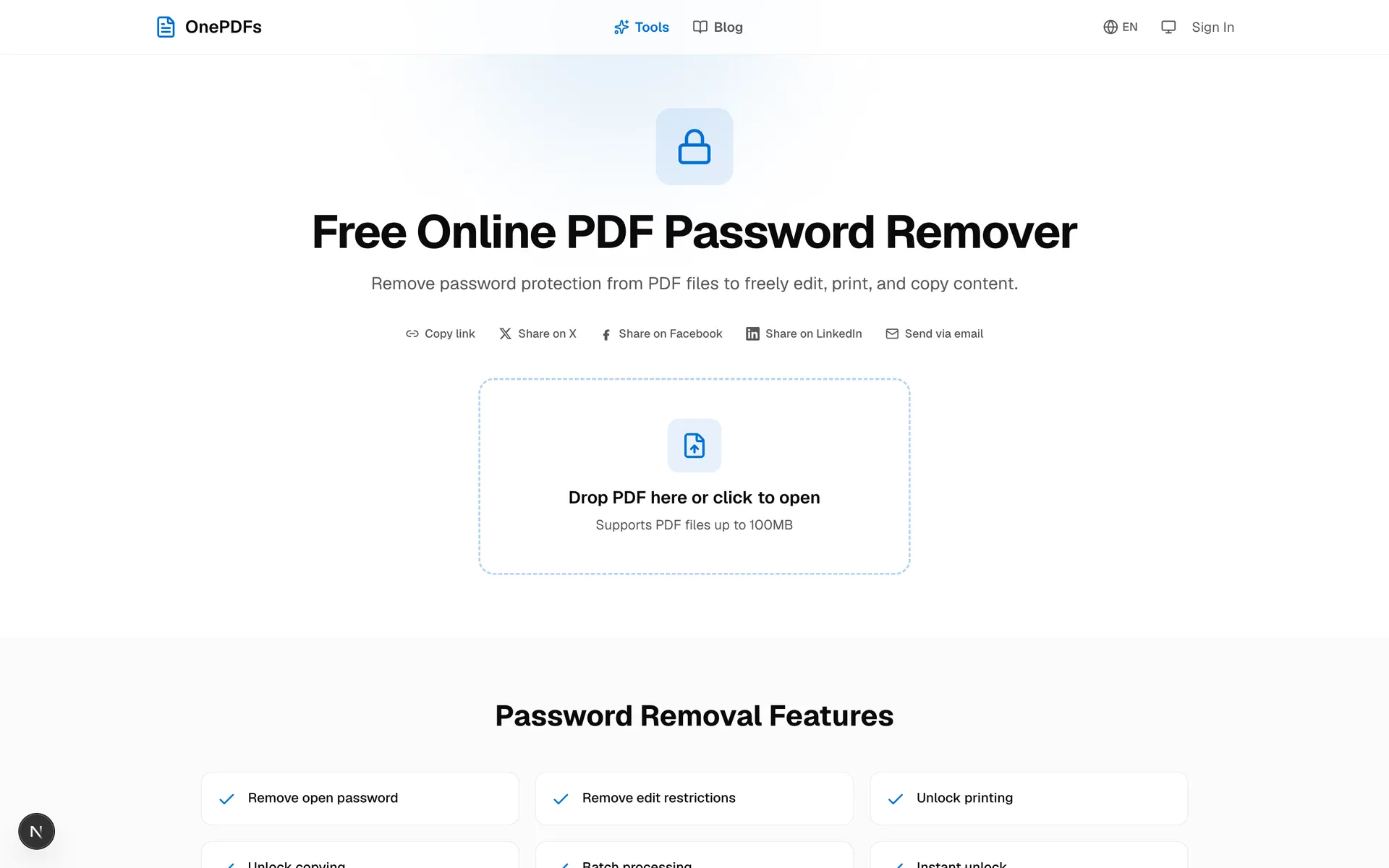
Go to the Remove PDF Password tool. You can drag the protected PDF onto the upload area or choose it from your device. There is no sign-up step and no account gate before the upload.
Step 2: Upload the Protected PDF
After you select the file, OnePDFs opens it in the editor. Because the PDF is protected, the viewer asks for the password before showing the pages. This is the important boundary: the tool removes protection from a PDF you can already open. It is not trying to guess a missing password.
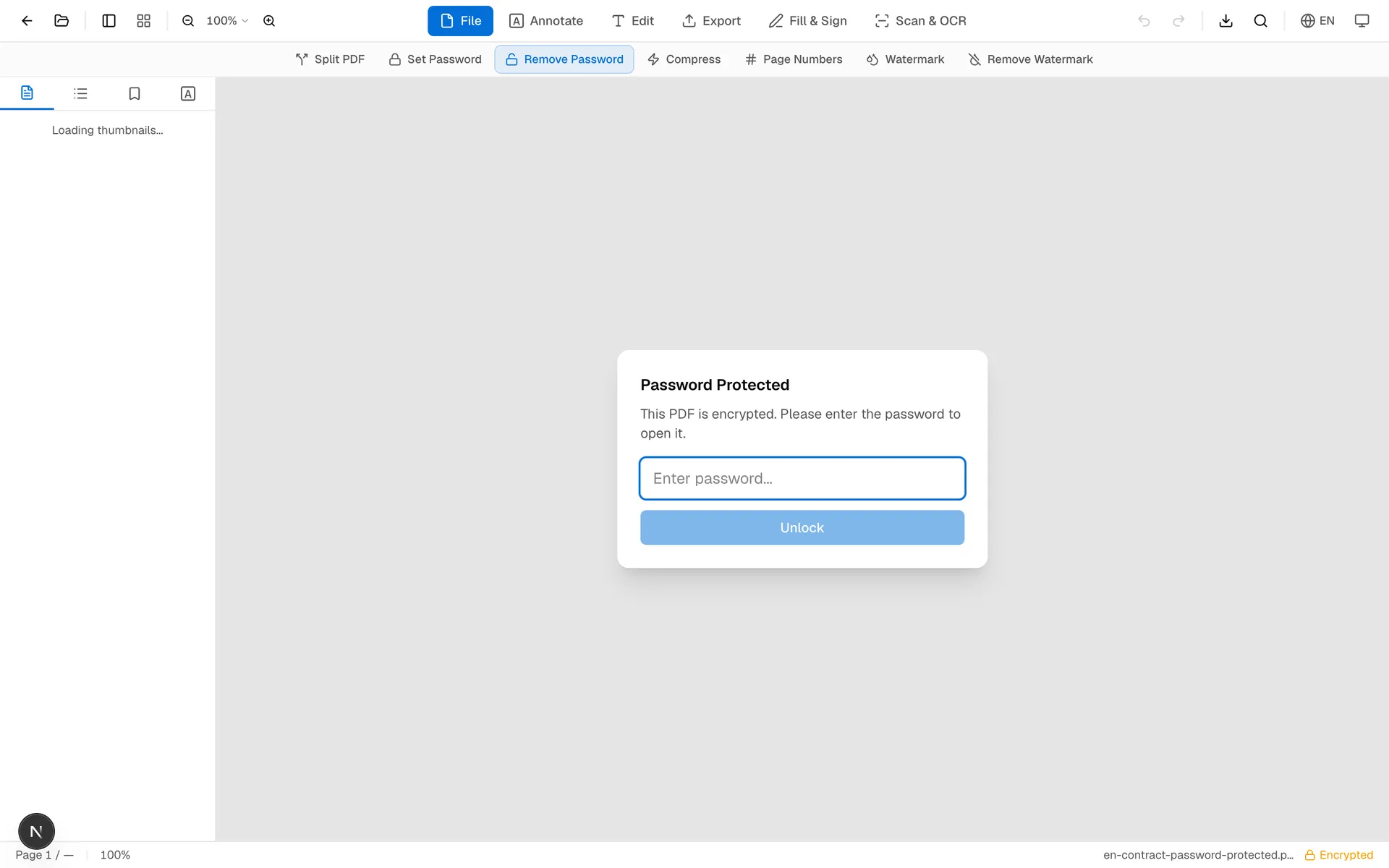
Enter the known password and unlock the document. In the example screenshots, the test file was generated in English and protected with a demo password.
Step 3: Click Remove Password
Once the PDF opens, stay in the file tools area and click Remove Password. The button becomes available only after the encrypted document has been opened with the correct password.
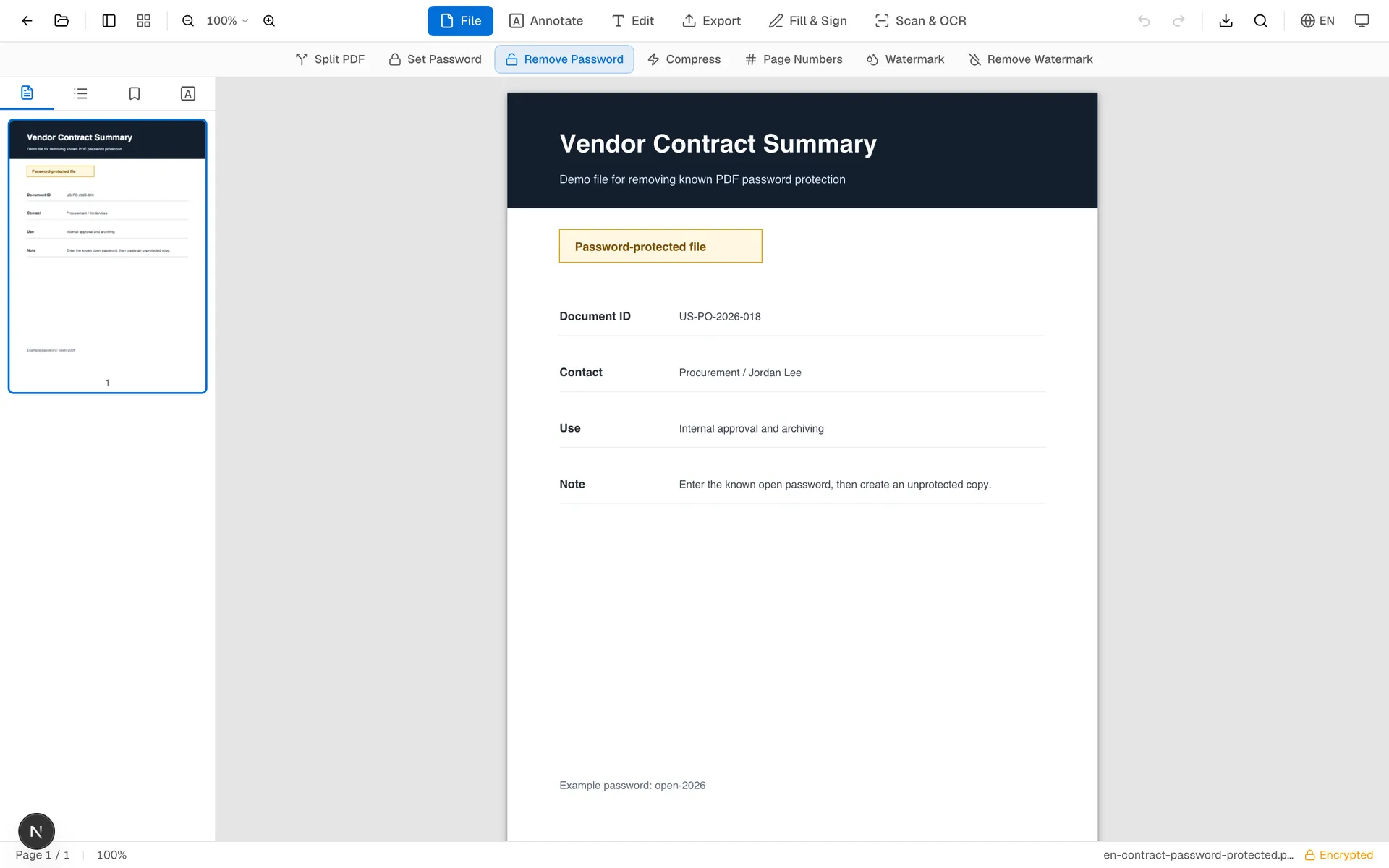
OnePDFs creates a new PDF copy without the password requirement. Your page content, layout, fonts, and images remain the same.
Step 4: Download and Check the Unprotected Copy
When the PDF reloads, it is no longer marked as password-protected. Download the file, then reopen it in your usual PDF viewer. If it opens without asking for a password, the protection has been removed successfully.
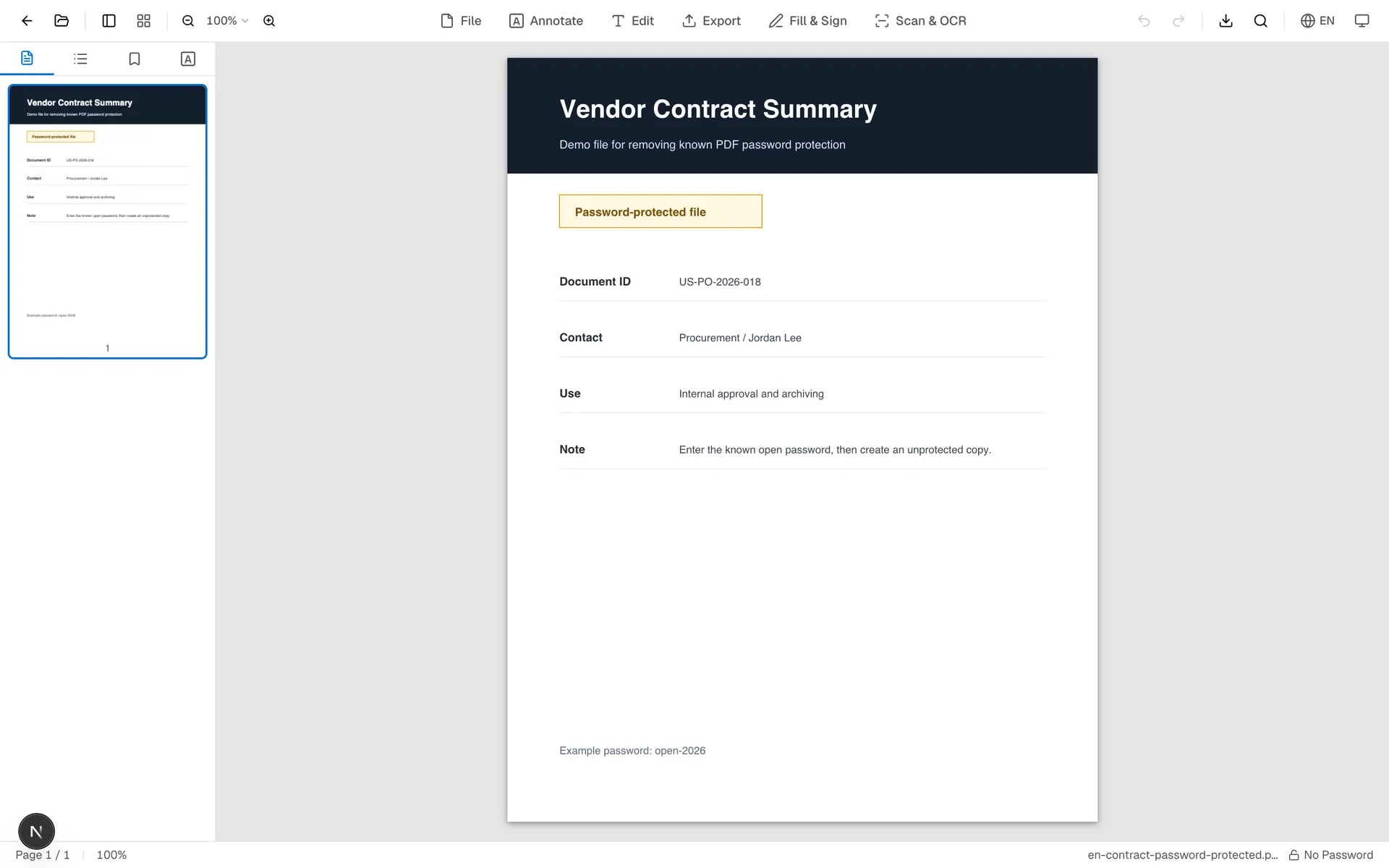
Keep the original protected file if you may need to prove where the document came from. For everyday use, the unlocked copy is easier to archive, merge, compress, print, or attach to a workflow.
When Should You Remove a PDF Password?
Remove protection when the password is no longer useful for your own workflow. Common examples include approved contracts that need to go into a shared archive, bank statements you keep in a personal records folder, or internal reports that are now stored in a restricted company drive.
Do not remove protection just to forward a private file more widely. If the PDF contains sensitive data, keep it protected or replace the password with one that matches the new audience. The PDF password tool can help you protect a clean copy again.
FAQ
Can OnePDFs remove a password if I do not know it?
No. You need the correct password or permission to open the PDF. This workflow removes password protection from a file you can already access.
Is the tool free?
Yes. The Remove Password tool is free to use and does not require login.
Will the page layout change?
No. The goal is to create the same PDF content without the password requirement.
Should I delete the protected original?
Usually, keep it until you are sure the unlocked copy works and your record-keeping policy allows deletion.
What is the difference between an open password and a permissions password?
An open password blocks viewing the file. A permissions password limits actions after the file opens, such as printing, copying, or editing. OnePDFs is best used when you know the correct password and want a normal copy for your own workflow.
Ready to make a protected PDF easier to use? Open Remove PDF Password, enter the known password, remove protection, and download the unprotected copy.