Convert JPG to PDF Online: Order Images, Margins, and Page Size
Use this when you have a group of JPG, PNG, or phone photos that should travel as one PDF: receipts for reimbursement, ID scans, class notes, whiteboard photos, or screenshots for a support case. The goal is not fancy editing. The goal is a clean PDF where the pages are in the right order, the images are not stretched, and the edges are not cut off.
Open Image to PDF, add the images, check the queue, then export. Before uploading, remove duplicates and rotate sideways photos. If the filenames are random camera names, rename them with a simple sequence like 01-cover, 02-receipt, 03-id-front. That makes the queue easier to verify.
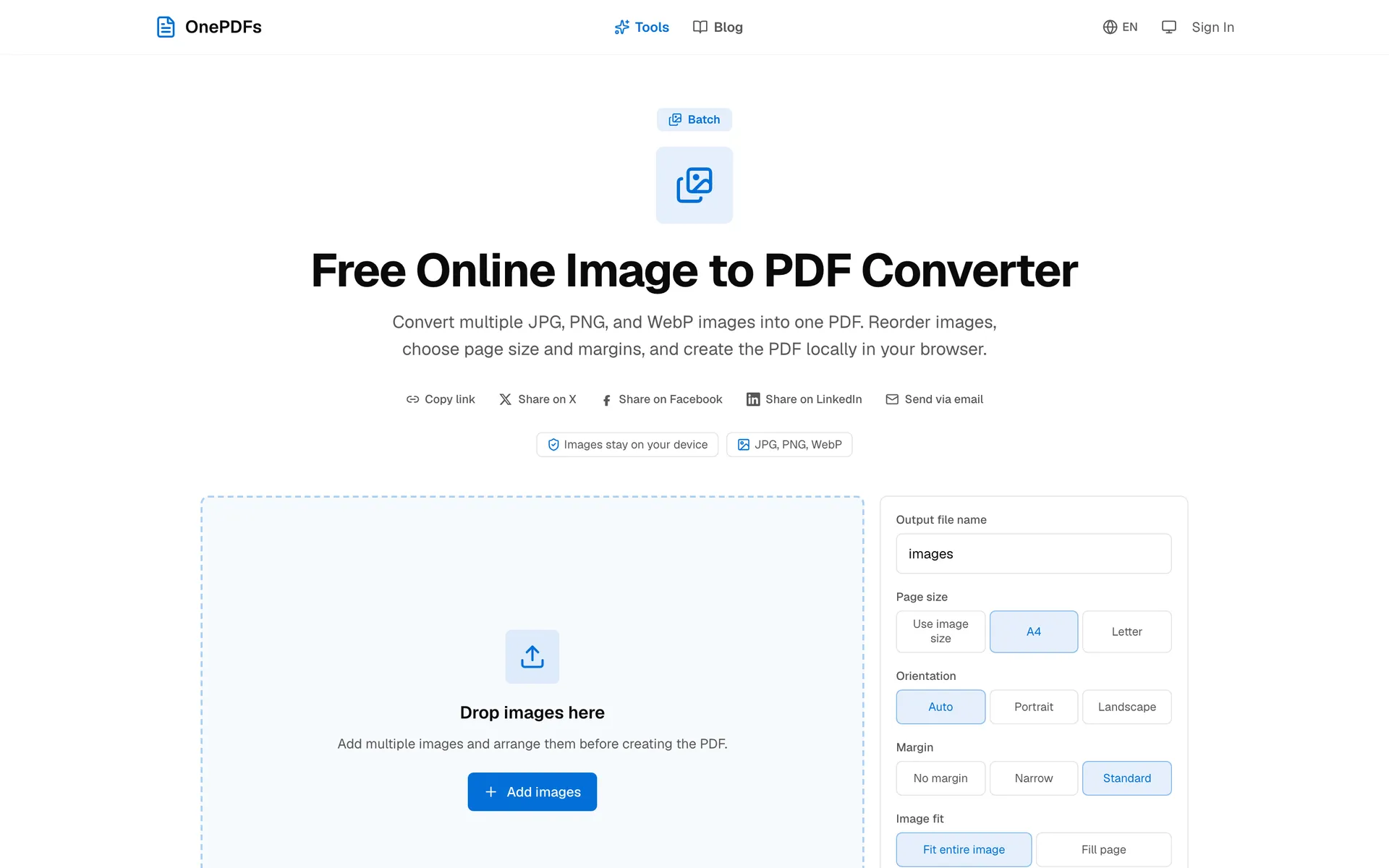
Convert the Images
The upload page is shown above. Add all images at once if they belong in the same PDF. After upload, OnePDFs shows a queue. Each card becomes one PDF page, so the order you see there is the order in the final file.
Read the cards from first to last before exporting. For an expense packet, put the summary or cover first, then receipts. For an ID scan, keep front and back together. Fixing the order here is much easier than rebuilding the PDF later.
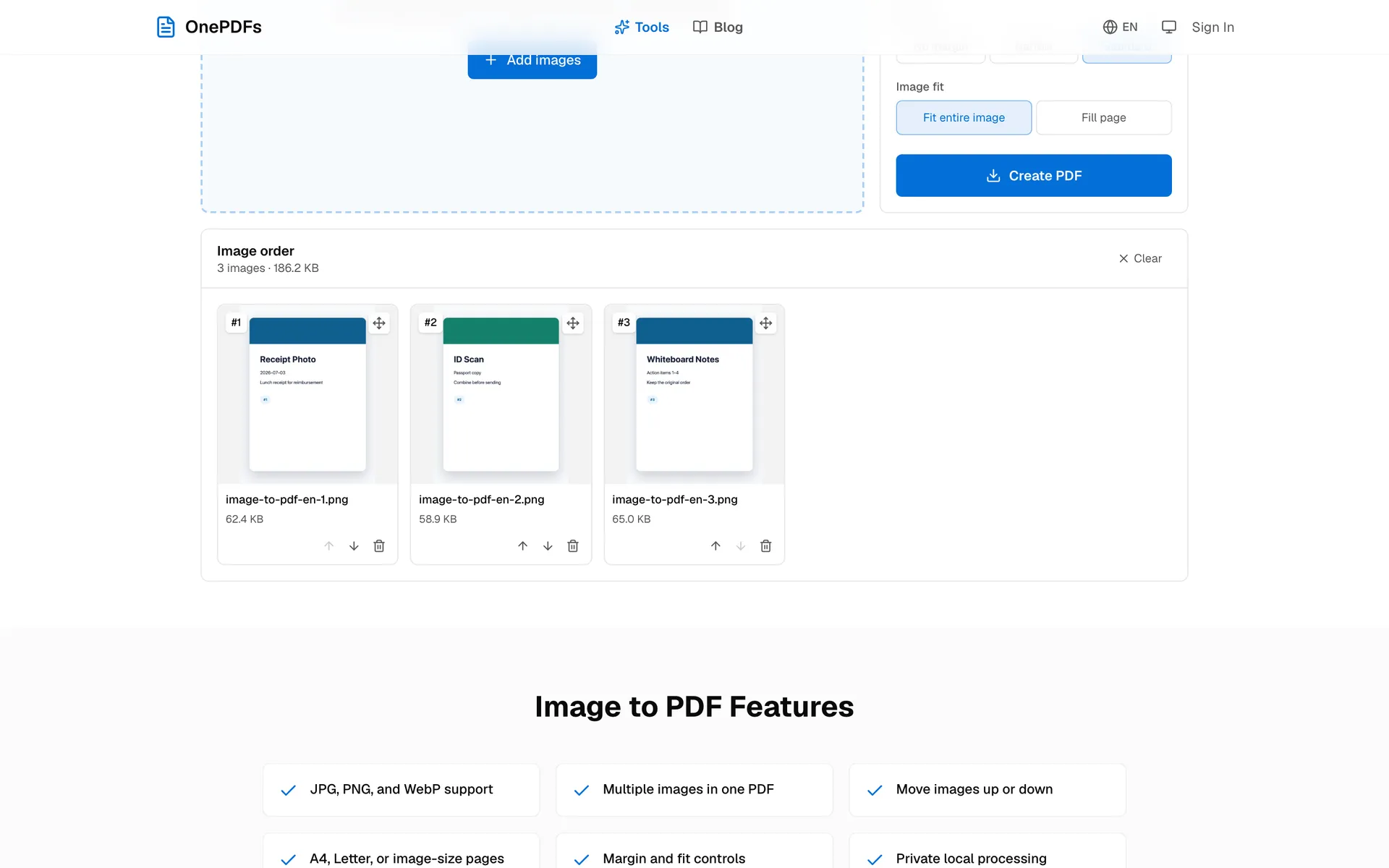
Choose the Page Look
Use A4 or Letter when the PDF will be printed, emailed as a formal attachment, or uploaded to a portal. Use original image size when you only need to preserve the photo dimensions.
For receipts, IDs, and forms, keep a small margin. It makes the file look less cramped and helps avoid printer cutoffs. Choose the fit option that keeps the full image visible. A fill-the-page crop is fine for a cover image, but it is risky for documents with text near the edge.
Check the Result
The downloaded PDF should have one image per page, in the same order as the queue. Open it once and check the first page, the last page, and any page with small text. You are looking for three things: correct order, correct orientation, and enough margin.
If the PDF is too large, the source photos are usually the reason. Phone images can be several megabytes each. Resize the images first if this is just a receipt packet or a lightweight attachment.
When to Use a Different Tool
If you need images from an existing PDF, use PDF to Image. If this new image PDF needs to sit inside a larger packet with contracts or attachments, combine it afterward with Merge PDF.
FAQ
Can I convert multiple JPG files into one PDF?
Yes. Add all images, check their order, then generate one PDF.
Should I use JPG, PNG, or WebP?
JPG is fine for photos and receipts. PNG is better for screenshots, diagrams, and text-heavy images.
Will the images upload before the PDF is created?
No. OnePDFs creates the image PDF locally in your browser.
After downloading, open the PDF once and scan the first and last page. Most mistakes are simple order or margin issues.